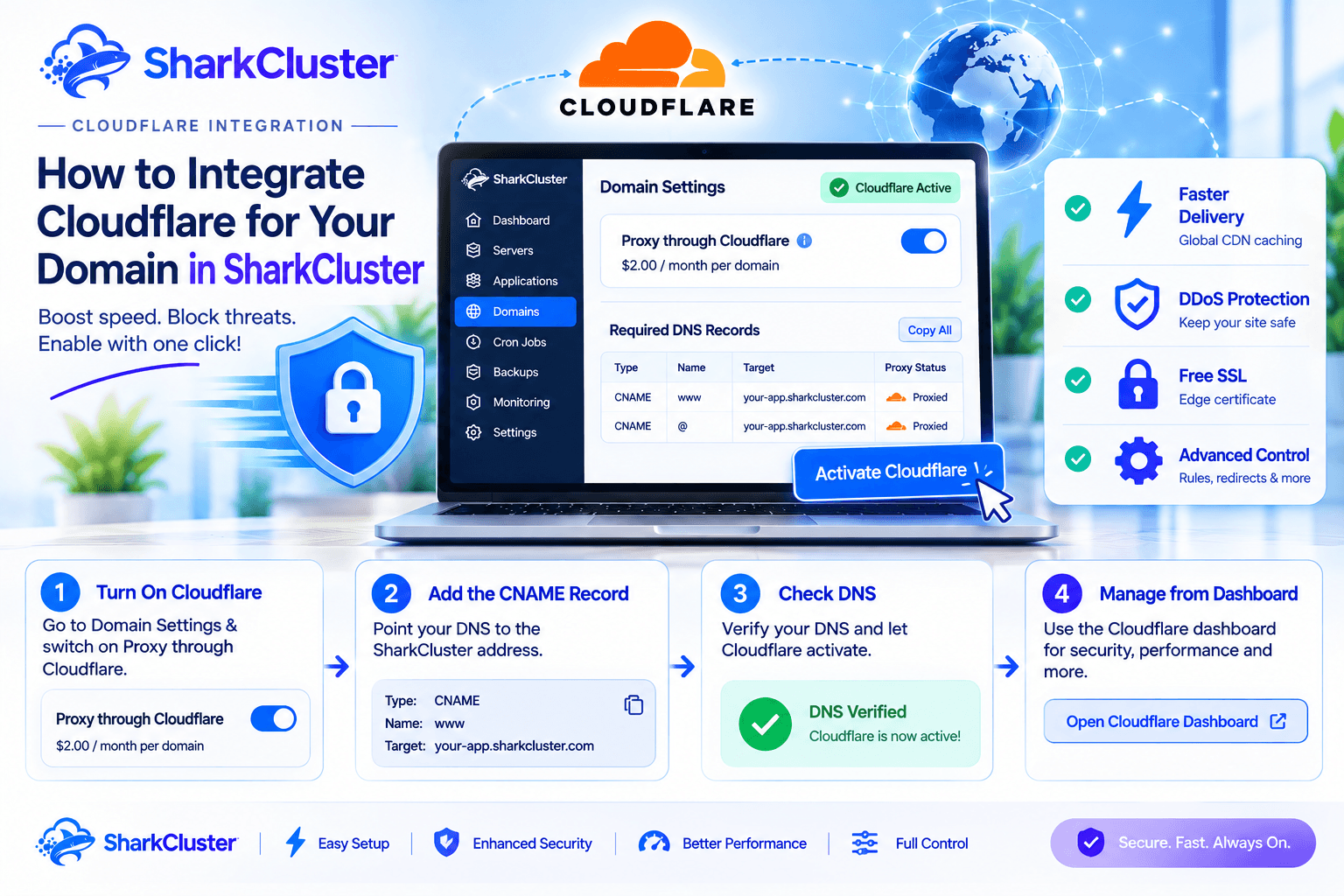

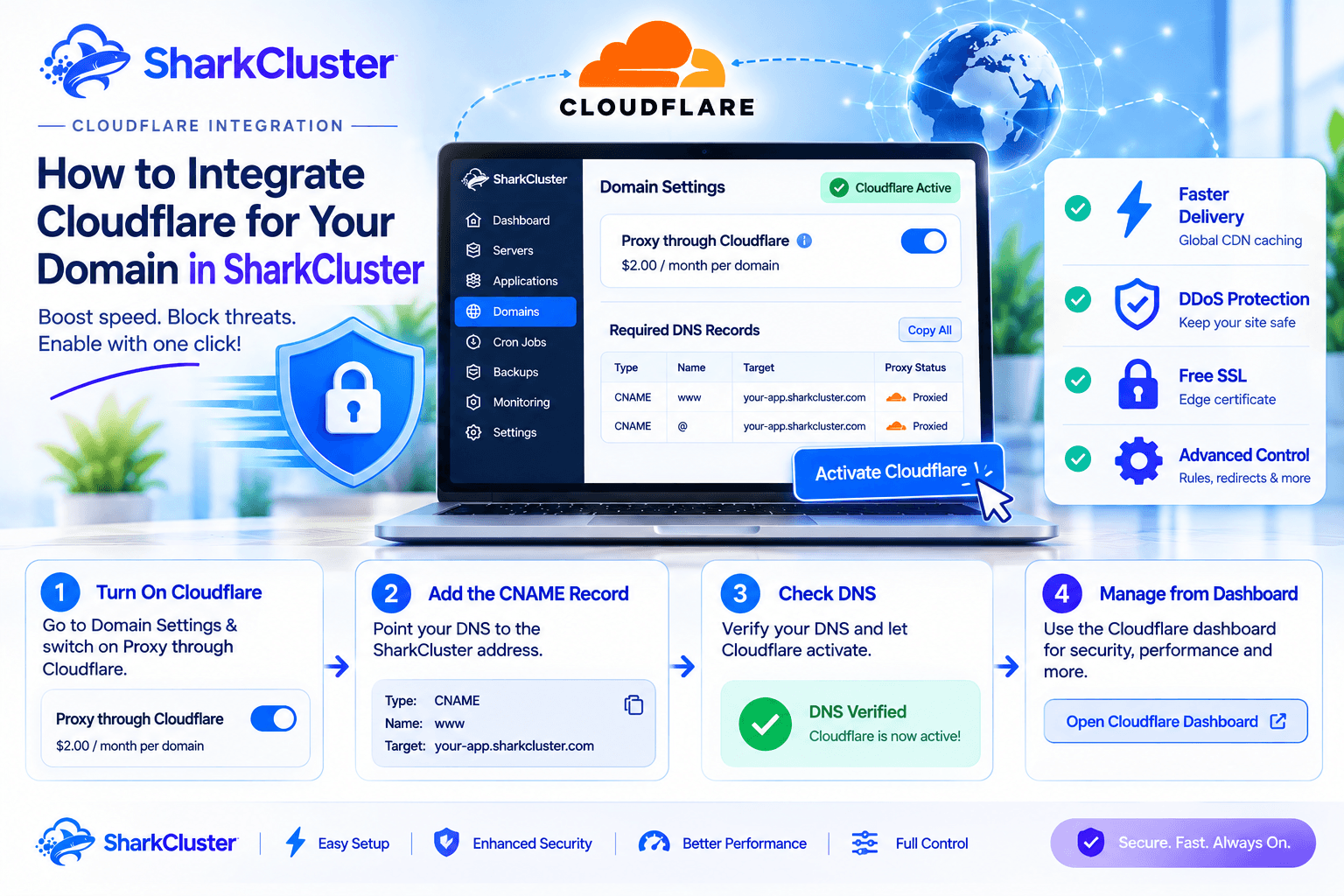
Your application is live on its own domain. The next question is usually how to make it faster for visitors far from your server, and how to keep bots and attacks away from it. Cloudflare answers both: it sits in front of your site, serves cached files from locations close to your visitors, provides HTTPS at the edge and absorbs DDoS attacks before they reach your server.
Setting Cloudflare up yourself means creating an account, moving your DNS and learning a large dashboard. In SharkCluster it is a switch on your domain. This guide shows how to turn it on, which DNS record to add, and what you can manage once it is running.
What you get with Cloudflare in SharkCluster
- No Cloudflare account needed. Your domain is added to SharkCluster's Cloudflare setup. You keep your DNS wherever it is today and only add one record.
- Edge SSL certificate. Cloudflare issues and renews the HTTPS certificate for you.
- Faster delivery. Static files are cached across Cloudflare's network, using a caching profile that matches your kind of site.
- DDoS protection that is always on, plus country rules, rate limiting, bot protection and login protection you can switch on per domain.
- Redirects at the edge, analytics, firewall rules and email alerts, all from the SharkCluster dashboard.
Cloudflare is a paid add-on, charged per domain per month. The current price, and any free trial, is shown next to the option before you turn it on, and billing stops as soon as you turn it off.
Before you start
- An application on SharkCluster with your own domain or subdomain. Cloudflare is not offered for the application's free SharkCluster address.
- Access to your domain's DNS settings at your registrar or DNS provider (GoDaddy, Namecheap, Route 53 and so on).
- Ideally, a domain that is already the application's primary domain. The Cloudflare dashboard shows data for the primary domain.
Step 1: Turn on Cloudflare for your domain
Adding a new domain
- Open your server, select the application, and go to Domains.
- Click Add domain and enter your domain, for example
shop.example.com. - On the Settings step, switch on Proxy through Cloudflare. The price per domain is shown right next to it.
- Continue to Point DNS.
A domain you already added
- On the Domains page, open the domain's More options menu.
- Choose Domain Settings & Redirects.
- Switch on Proxy through Cloudflare and save.
Once Cloudflare is on, the Required DNS Records table changes to show Routing: Cloudflare Proxy (CNAME).
Step 2: Add the CNAME record
Without Cloudflare, your domain points straight at your server's IP address with an A record. With Cloudflare, it points at your application's SharkCluster address with a CNAME record, so traffic flows through Cloudflare first. The table shows the exact values, each with a copy button.
| Your domain | Records to add at your DNS provider |
|---|---|
Subdomain, like shop.example.com | A CNAME for shop pointing to your SharkCluster address. |
Root domain, like example.com | A CNAME for @ and a CNAME for www, both pointing to your SharkCluster address. |
www domain, like www.example.com | A CNAME for www pointing to your SharkCluster address, plus an A record for @ pointing to your server's IP. |
Adding a root domain? Many DNS providers do not allow a CNAME on
@. Look for an ALIAS, ANAME or CNAME flattening option and point it at the same SharkCluster address. If your provider has none of these, use thewwwaddress as your primary domain.
If your DNS is hosted at Cloudflare under your own account, set the record to DNS only (grey cloud). SharkCluster already provides the proxy, and turning the orange cloud on as well causes a conflict.
Step 3: Check DNS and let Cloudflare activate
Click Check DNS. Each record is marked Verified when it is correct. Two other results are worth knowing:
| Result | What to do |
|---|---|
| Record Mismatch | An A record is still in place. Replace it with the CNAME shown in the table. |
| Proxy Mismatch | The domain already points to Cloudflare, but the Cloudflare option is off for it in SharkCluster. Switch the option on. |
Once the CNAME is found, SharkCluster registers your domain with Cloudflare, which validates it and issues the edge certificate. This usually takes about a minute and can take up to a couple of hours. You can follow it on the domain's card, which refreshes every 20 seconds:
- Cloudflare (Pending CNAME): waiting for the DNS record.
- Cloudflare SSL Deploying: DNS is verified and the certificate is being issued.
- Cloudflare edge certificate and Cloudflare proxy on: you are live. A message also tells you when Cloudflare is fully active.
Step 4: Explore the Cloudflare dashboard
Open Cloudflare from the application's menu, or choose Cloudflare Dashboard from the domain's More options menu. It is organised into tabs.
Overview
Protection, SSL and proxy status at a glance, today's requests, blocked requests, bandwidth saved and cache hit ratio, plus which protections are active.
Security
Switch on what your site needs, then click Save Security Settings:
- Country Restrictions to allow or block visitors by country.
- Admin Area Protection and URL Lockdown to restrict paths like
/wp-adminor/internalto your own IP addresses. - Login Protection to limit your login page to chosen countries or IPs.
- Rate Limiting against brute-force and API abuse, for example 25 requests per 10 seconds before a visitor is blocked.
- Bot Protection to challenge bots on login and admin pages and block common scrapers.
- Maintenance Mode to block everyone except your IPs while you work, and Force HTTPS to redirect all HTTP traffic.
Add your own IP address first when you switch on Admin Area Protection, Login Protection or Maintenance Mode, so you do not lock yourself out.
Performance
Pick a Performance Profile that matches your site and SharkCluster creates the right Cloudflare cache rule for you: Dynamic Website, E-Commerce (cart, checkout and account pages are never cached), Static Website, Download Hosting, API Service or Custom. After a deployment, Clear Cache removes your domain's cached files without touching anyone else's.
Redirects, Analytics and Advanced Rules
- Redirects: URL, domain and country-based redirects, run at Cloudflare's edge before requests reach your server.
- Analytics: traffic, threats, cache performance, top countries and blocked IPs.
- Advanced Rules: your own firewall rules (IF country, IP, path or user agent matches, THEN allow, block, challenge or rate limit), hotlink protection and custom error pages.
Notifications
Set the email address that should hear about problems such as SSL or hostname validation failures for the domain.
A word about Origin Protection
The Origin Protection tab can lock your server's firewall so that web traffic is only accepted from Cloudflare. That stops anyone from bypassing Cloudflare by visiting your server's IP address directly.
It applies to the whole server, not just one domain. Ports 80 and 443 then only accept Cloudflare, so any other site on the same server that is not behind Cloudflare stops loading. Only enable it when every domain on that server uses Cloudflare.
Turning Cloudflare off
- Open the domain's More options menu and choose Domain Settings & Redirects.
- Switch off Proxy through Cloudflare and save.
- At your DNS provider, replace the CNAME with the record now shown, usually an A record pointing to your server's IP, and click Check DNS.
Billing for the domain stops, and if Automatic HTTPS & SSL is on, a free Let's Encrypt certificate takes over once DNS points at your server.
Frequently asked questions
Do I need my own Cloudflare account?
No. Your domain is handled through SharkCluster's Cloudflare setup, and everything is managed from the SharkCluster dashboard.
Do I have to move my DNS to Cloudflare?
No. Keep your DNS with your current provider and add the CNAME record SharkCluster shows you.
Can I use Cloudflare on some domains and not others?
Yes. Cloudflare is switched on per domain, and each domain is billed separately. Keep Origin Protection off if any domain on the server does not use Cloudflare.
Will my site go down while I switch?
Your SharkCluster address keeps working throughout, and the change only affects your domain once the new DNS record takes effect. Most providers apply it within a few minutes.
Next steps
For every setting on every tab, read the Cloudflare guide in the SharkCluster documentation. If you have not added your domain yet, start with how to manage domains for your application.
Run this on your own VPS
Deploy servers and applications on infrastructure you own, managed from one panel — backups, caching, firewall and monitoring included.