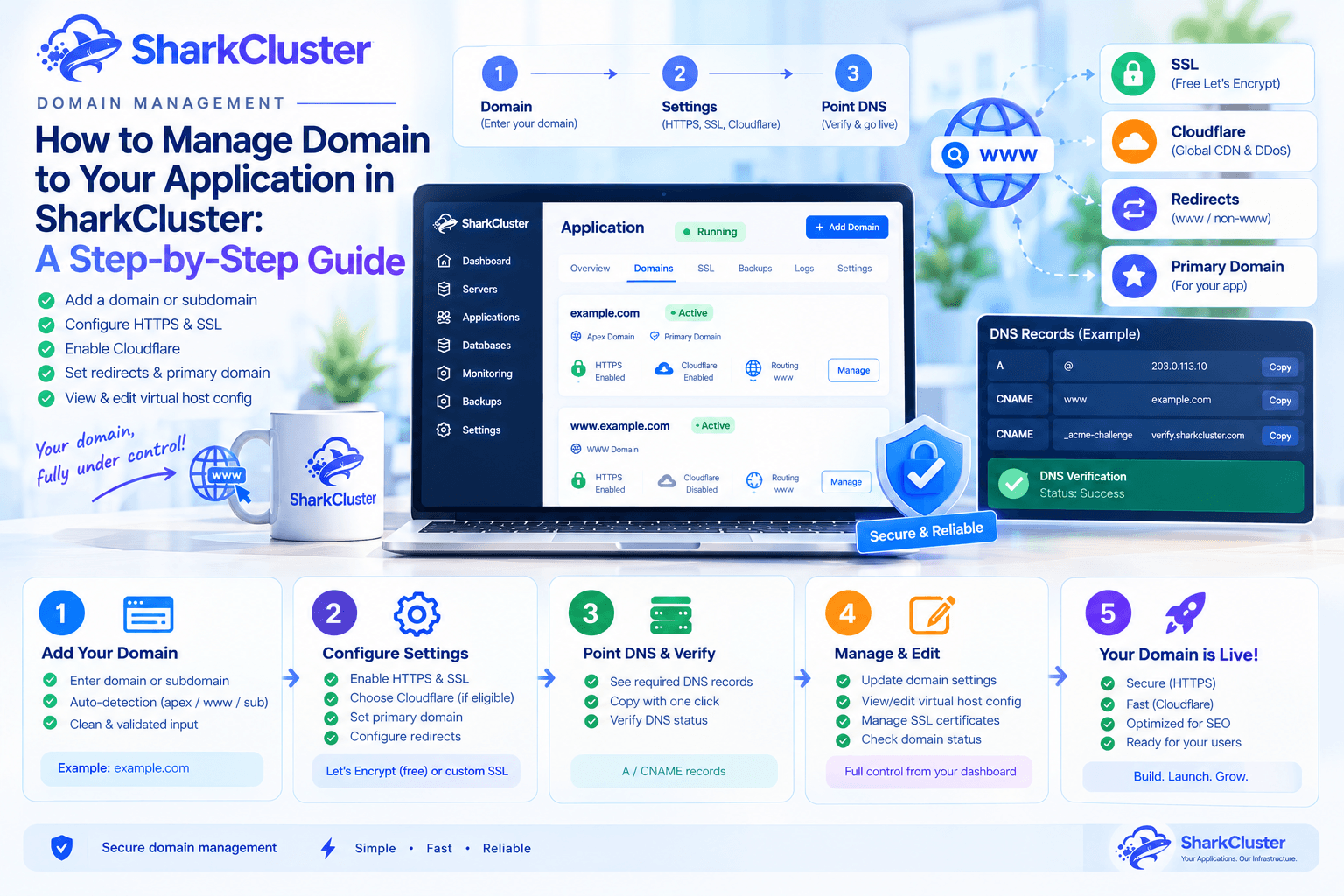

Connecting a domain to an application is one of the most important steps in getting a website live. In SharkCluster, the application domain workflow is built as a guided three-step wizard, followed by simple tools for editing domain settings, managing SSL certificates, and viewing or editing the virtual host configuration.
This guide explains the complete application domain flow: how to add a domain, configure HTTPS, SSL, Cloudflare, redirects, and primary domain settings, how to point DNS records correctly, how to verify DNS, how to edit an existing domain, and how to view or edit the virtual host config for troubleshooting or advanced customization.
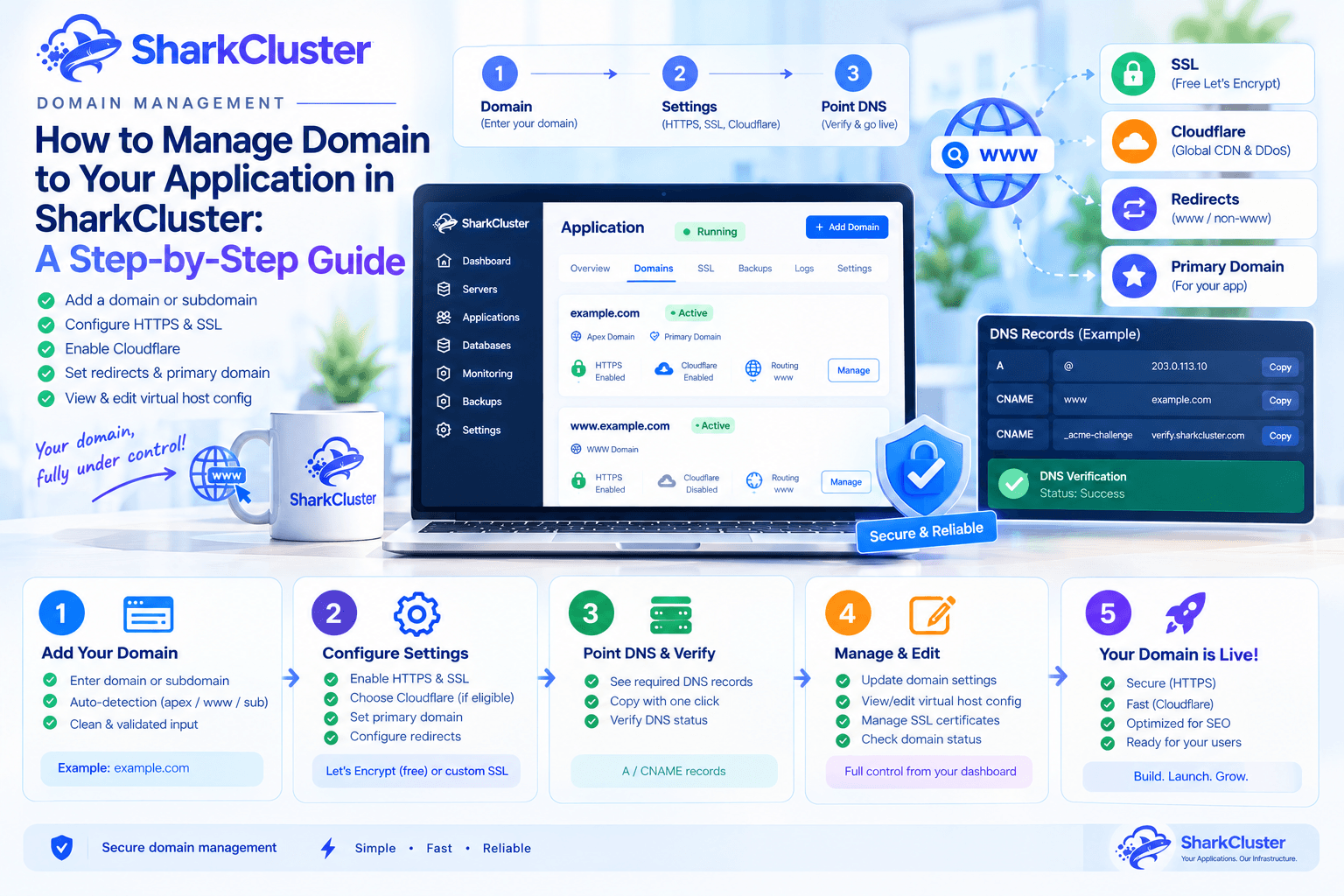
What You Can Do from the Domain Page
The Domain tab under an application gives you a single place to manage everything related to that application's domains. From here you can:
- Add a new domain or subdomain to the application.
- Configure automatic HTTPS or upload a custom SSL certificate.
- Enable Cloudflare proxying for supported custom domains.
- Choose whether visitors land on the www or non-www version.
- Set a domain as the primary domain for the application.
- View required DNS records with one-click copy buttons.
- Run a live DNS verification check.
- Edit domain names, redirects, SSL, Cloudflare, and primary settings.
- View and edit the virtual host configuration on the server.
- Manage SSL certificates, including Let's Encrypt re-issuance and custom certificate uploads.
- Monitor domain status, HTTPS status, and routing status from each domain card.
Before You Start
Before adding a domain, make sure you have:
- Access to the application in SharkCluster.
- The domain or subdomain name you want to connect.
- Access to your DNS provider's control panel.
- The server IP address shown in the domain flow, unless you plan to route through Cloudflare.
- A custom certificate and private key only if you intend to use custom SSL instead of Let's Encrypt.
SharkCluster automatically detects whether a domain is an apex domain, a www domain, or a subdomain. That detection affects which DNS records are required and which redirect options are available.
How to Add a Domain to an Application
Adding a domain uses a three-step wizard: Domain, Settings, and Point DNS.
Step 1: Enter the Domain Name
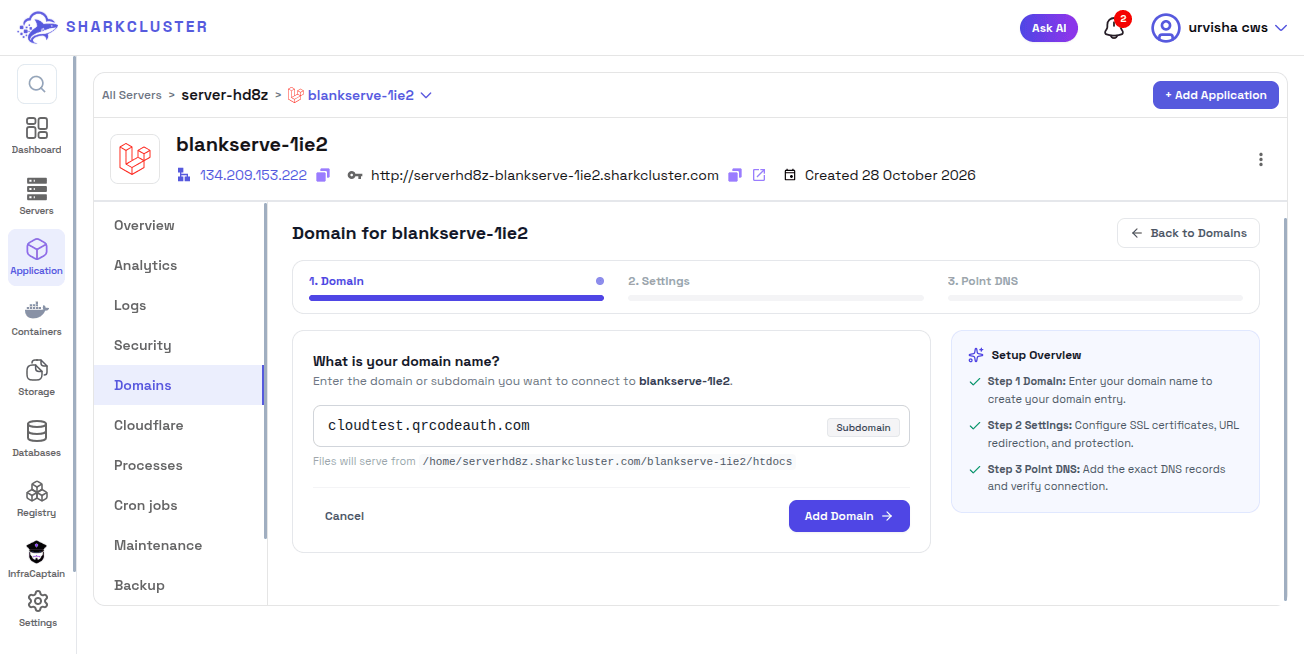
Open the Domain tab for your application and choose the option to add a domain.
Enter the domain or subdomain you want to connect, for example:
- example.com for an apex domain.
- www.example.com for the www version.
- app.example.com for a subdomain.
SharkCluster cleans the input automatically. Protocol prefixes such as https:// and paths after a slash are removed, and the domain is normalized to lowercase. Special characters such as "/" are not allowed.
The interface also identifies the domain type and displays a label such as Apex Domain, www address, or Subdomain. If the domain belongs to SharkCluster's own system domain, it is treated as a managed system subdomain and cannot be renamed.
After entering the domain, continue to the next step. SharkCluster creates the domain record in a pending state so that DNS and virtual host creation happen only after the settings are saved and DNS is verified.
Step 2: Configure Settings
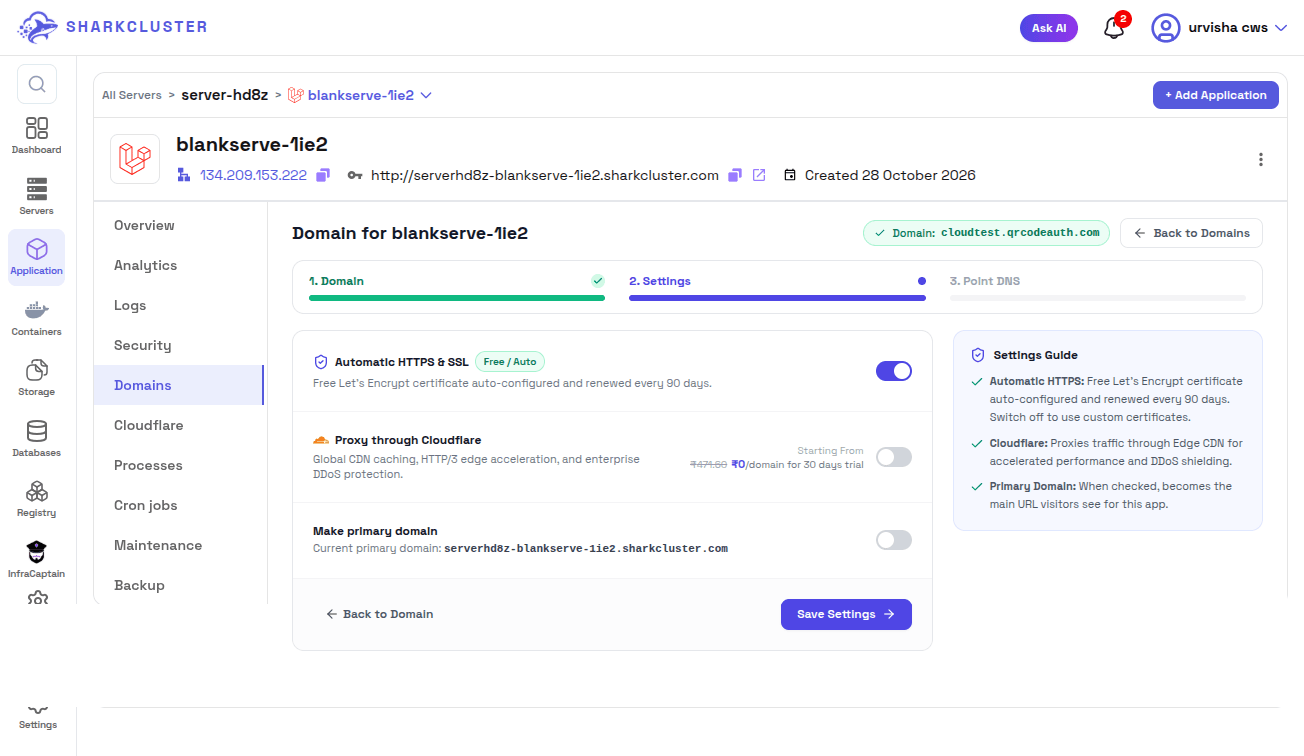
The Settings step controls HTTPS, SSL, Cloudflare, primary domain status, and redirect behavior.
Automatic HTTPS and SSL
By default, SharkCluster uses a free Let's Encrypt certificate that is configured automatically and renewed every 90 days. This is the recommended option for most websites.
If you switch off automatic HTTPS, you can upload a custom certificate and private key. Custom SSL is useful when you already have a certificate from another certificate authority or need a specific certificate configuration.
Cloudflare Proxy
For eligible custom domains, SharkCluster can proxy traffic through Cloudflare. This adds global CDN caching, HTTP/3 edge acceleration, and DDoS protection. Cloudflare integration changes the required DNS record from an A record pointing to your server IP to a CNAME record pointing to the SharkCluster proxy address.
Cloudflare is not offered for every domain type. Apex domains generally need the www version to use Cloudflare proxying. When Cloudflare is enabled, the DNS verification step requires a CNAME record instead of an A record.
Make Primary Domain
Each application can have a primary domain. The primary domain is the main address shown for the application, and it is used for uptime checks and application links. You can set the domain as primary during setup or later from the domain list.
A domain should normally be set as primary only after DNS is verified, because the primary domain must point to the server correctly.
Visitors Land On (Redirect Behavior)
For apex and www domains, you can choose how visitors are redirected:
- www.example.com: visitors are sent to the www version.
- example.com: visitors are sent to the non-www version.
- Both: no forced redirect is applied.
Redirects use a 301 permanent redirect, which is good for SEO because it standardizes the canonical address and avoids duplicate content.
When you finish this step, SharkCluster saves the settings to the domain record but keeps the virtual host creation pending until DNS verification succeeds.
Step 3: Point DNS and Verify
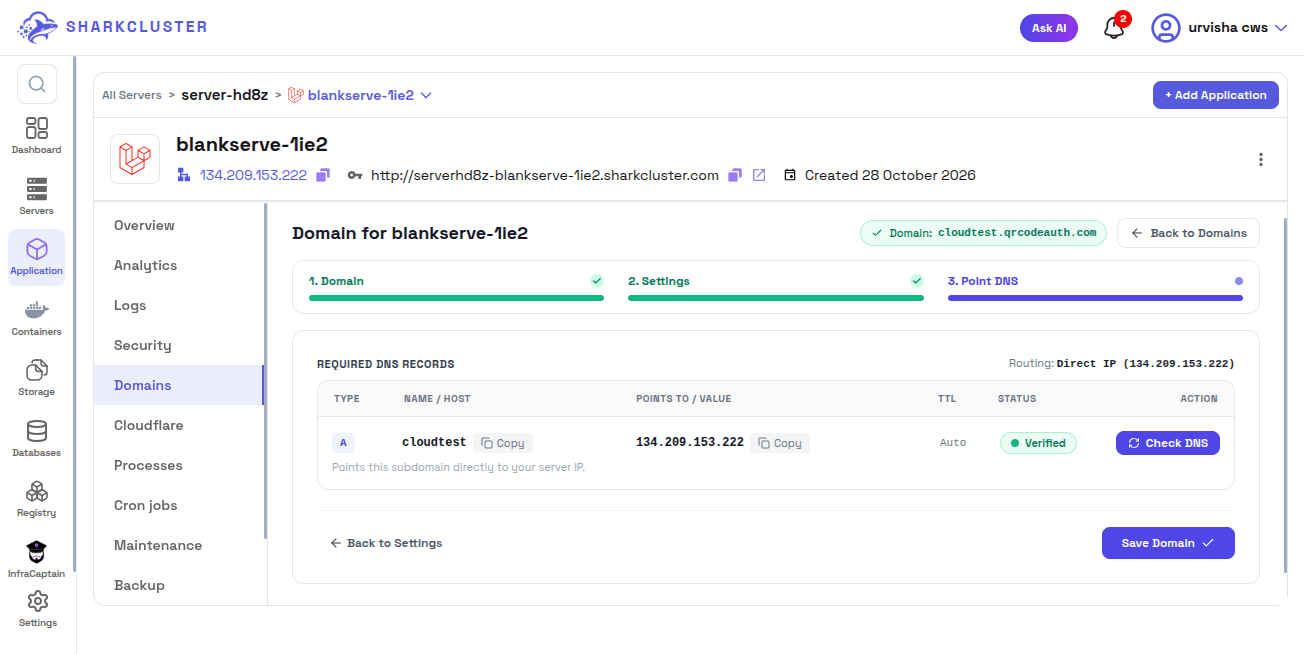
The final step shows the exact DNS records you need to add at your DNS provider. Each record includes the type, host or name, value, TTL, current verification status, and a copy button.
The required records depend on the domain type and whether Cloudflare is enabled.
Apex Domain Without Cloudflare
For an apex domain such as example.com, add an A record with host @ pointing to your server IP. If a redirect is configured, an additional A record for www may also be required.
Apex Domain With Cloudflare
For an apex domain routed through Cloudflare, SharkCluster shows CNAME records pointing to the proxy address. Some DNS providers require an ALIAS or ANAME record for the root domain.
www Domain
For www.example.com without Cloudflare, add an A record for www and usually an A record for @ so the bare domain also resolves. With Cloudflare enabled, the www record becomes a CNAME pointing to the proxy address, and the apex record points to the server IP.
Subdomain
For a subdomain such as app.example.com without Cloudflare, add an A record with the subdomain as the host and your server IP as the value. With Cloudflare enabled, add a CNAME record with the subdomain as the host and the proxy address as the value.
After adding the records, click Check DNS. SharkCluster queries public DNS and reports whether the records are verified. The status can show Verified, Not verified, Record Mismatch, or Proxy Mismatch with an explanation.
When the DNS check passes, save the domain. SharkCluster creates the virtual host on the server and activates the domain. If DNS is not verified yet, the domain is saved in a pending state so you can return and finish the setup later.
Understanding Domain Status
Each domain card displays three status indicators:
- Connectivity status: Online, Offline, or Waiting for DNS.
- HTTPS and SSL status: Let's Encrypt, custom certificate, Cloudflare edge certificate, pending issuance, or HTTP only.
- Routing status: direct to server IP or Cloudflare proxy.
If setup is incomplete, the card shows a pending step. You can click the card or the pending badge to resume the wizard at Step 2 or Step 3.
If a Let's Encrypt certificate has not been issued yet, an Issue SSL button appears so you can request or retry the certificate after DNS is verified.
How to View the Virtual Host Configuration
Every domain card includes a virtual host action. Selecting it opens the Virtual Host Config drawer.
The drawer fetches the current web server configuration for that domain and displays it in a code editor. It also shows the configuration file path and the domain name for context.
You can edit the configuration directly in the editor and then choose Test & save changes. SharkCluster tests the configuration before saving. If the configuration is invalid, the error output is shown so you can fix the problem and try again.
The virtual host editor is useful for advanced users who need to:
- Inspect the generated server configuration.
- Add custom directives.
- Debug rewrite rules.
- Adjust headers, caching, or proxy behavior.
- Confirm the document root and SSL settings for a domain.
Use this editor carefully. Invalid configuration can prevent the site from loading, so always review changes and keep a record of the original configuration.
SSL Management
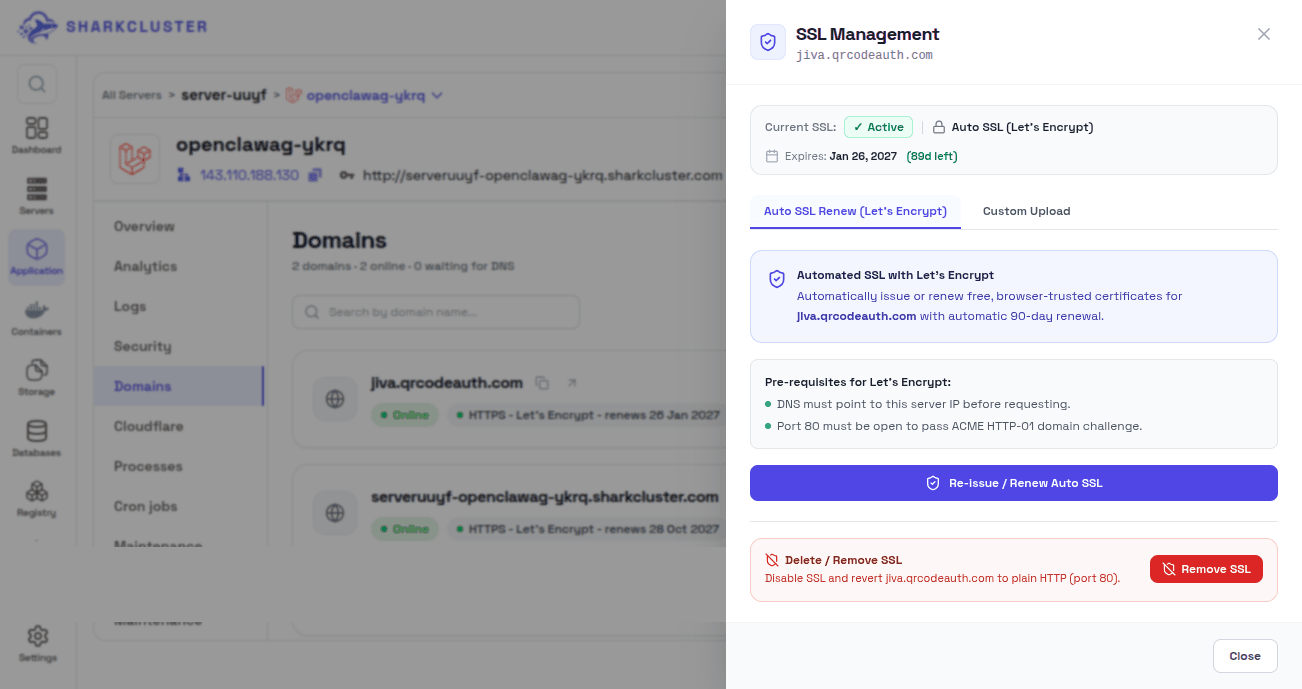
The SSL Management drawer gives you detailed control over a domain's certificate.
You can view the current certificate status, including Active, Expiring, Expired, or None, along with the expiry date and auto-renewal state. If a renewal fails, the drawer shows the failure reason.
The Auto SSL tab lets you issue or re-issue a Let's Encrypt certificate. Let's Encrypt certificates are renewed automatically before expiry.
The Upload Custom tab lets you upload a certificate file, a private key, and an optional certificate chain. After upload, SharkCluster installs the certificate and shows the extracted expiry date.
Making a Domain Primary
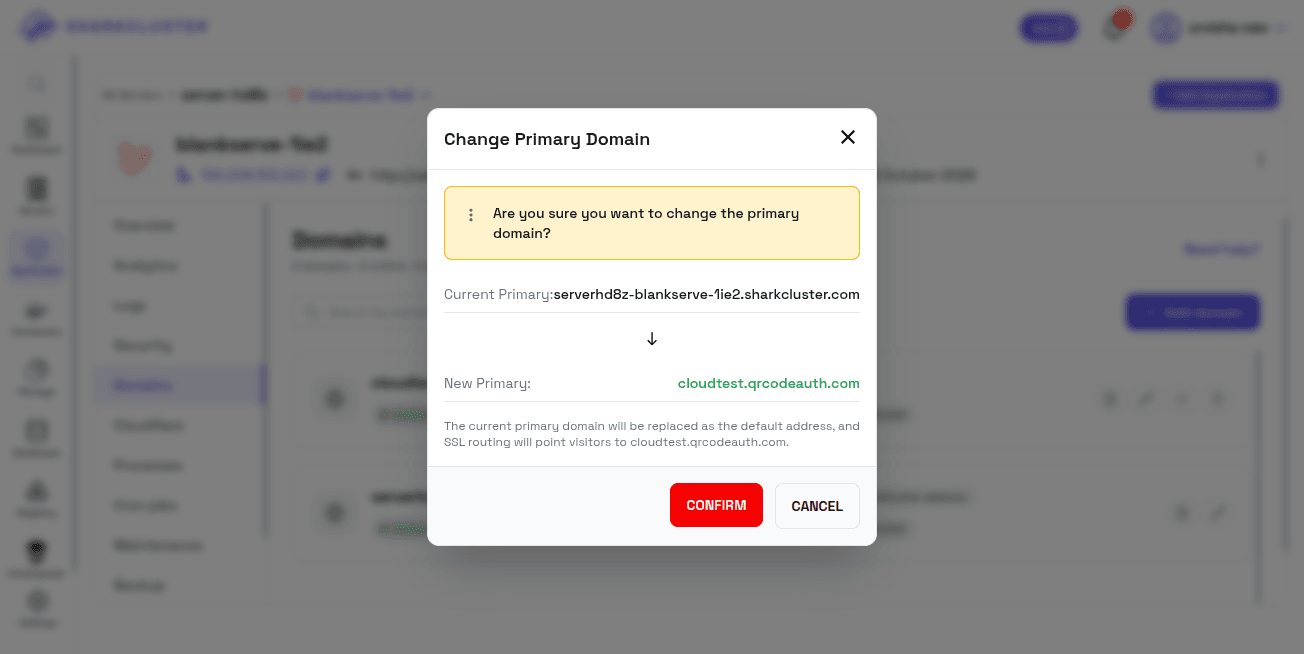
Only a domain with verified DNS should be made primary. When you switch the primary domain, SharkCluster updates the application's virtual host address and related links.
The current primary domain is protected and cannot be deleted from the domain list. To remove it, first make another verified domain primary.
Deleting a Domain
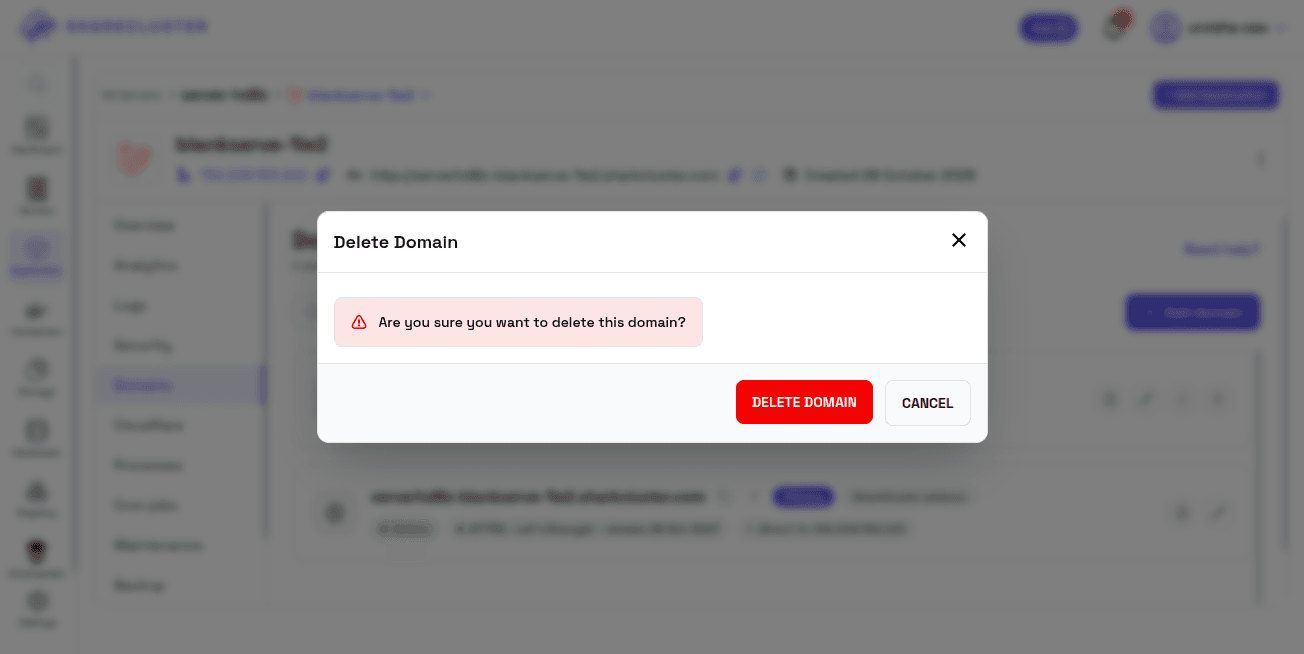
Non-primary domains can be deleted from the domain actions menu or from the delete icon on the domain card. Deleting a domain removes its configuration from the application. Make sure the domain is no longer needed before deleting it.
Troubleshooting Common Domain Issues
Waiting for DNS
The domain is saved, but DNS has not been verified yet. Add the required records and run Check DNS.
Offline
DNS is verified, but the site is not reachable. Check whether the application service is running and whether the DNS records still point to the correct destination.
Cloudflare Error 1001
This usually means the domain points to a Cloudflare proxy CNAME, but Cloudflare integration is turned off in SharkCluster. Either enable Cloudflare integration or point an A record directly to the server IP.
502 Bad Gateway
The DNS and routing are working, but the origin application is not responding. Check the application service, PHP or Node process, and server logs.
Record Type Mismatch
The DNS provider has an A record, but Cloudflare integration requires a CNAME, or the opposite. Update the record type to match the current Cloudflare setting.
Proxy Mismatch
The domain is proxied through Cloudflare, but Cloudflare integration is disabled in SharkCluster. Turn on Cloudflare integration or use DNS-only routing directly to the server.
SSL Issuance Failed
Let's Encrypt requires DNS to resolve to the server before it can validate the domain. Verify DNS, wait for propagation, then retry the SSL issuance.
Best Practices
- Use automatic Let's Encrypt SSL unless you have a specific reason to use a custom certificate.
- Choose one canonical address, www or non-www, and redirect the other version.
- Verify DNS before making a domain primary.
- Keep the virtual host configuration changes minimal and tested.
- Monitor the SSL expiry date and renewal status.
- Remove unused domains to keep the application configuration clean.
Conclusion
SharkCluster turns application domain management into a clear, guided workflow. You can add a domain with the three-step wizard, configure HTTPS, SSL, Cloudflare, redirects, and primary domain settings, add and verify DNS records, and then use the domain list to monitor status.
When you need to make changes, the edit drawer and SSL management tools cover the common cases, while the virtual host editor gives advanced users direct access to the server configuration. Following the DNS and SSL guidance in this article helps keep your application reachable, secure, and search-friendly.
Run this on your own VPS
Deploy servers and applications on infrastructure you own, managed from one panel — backups, caching, firewall and monitoring included.