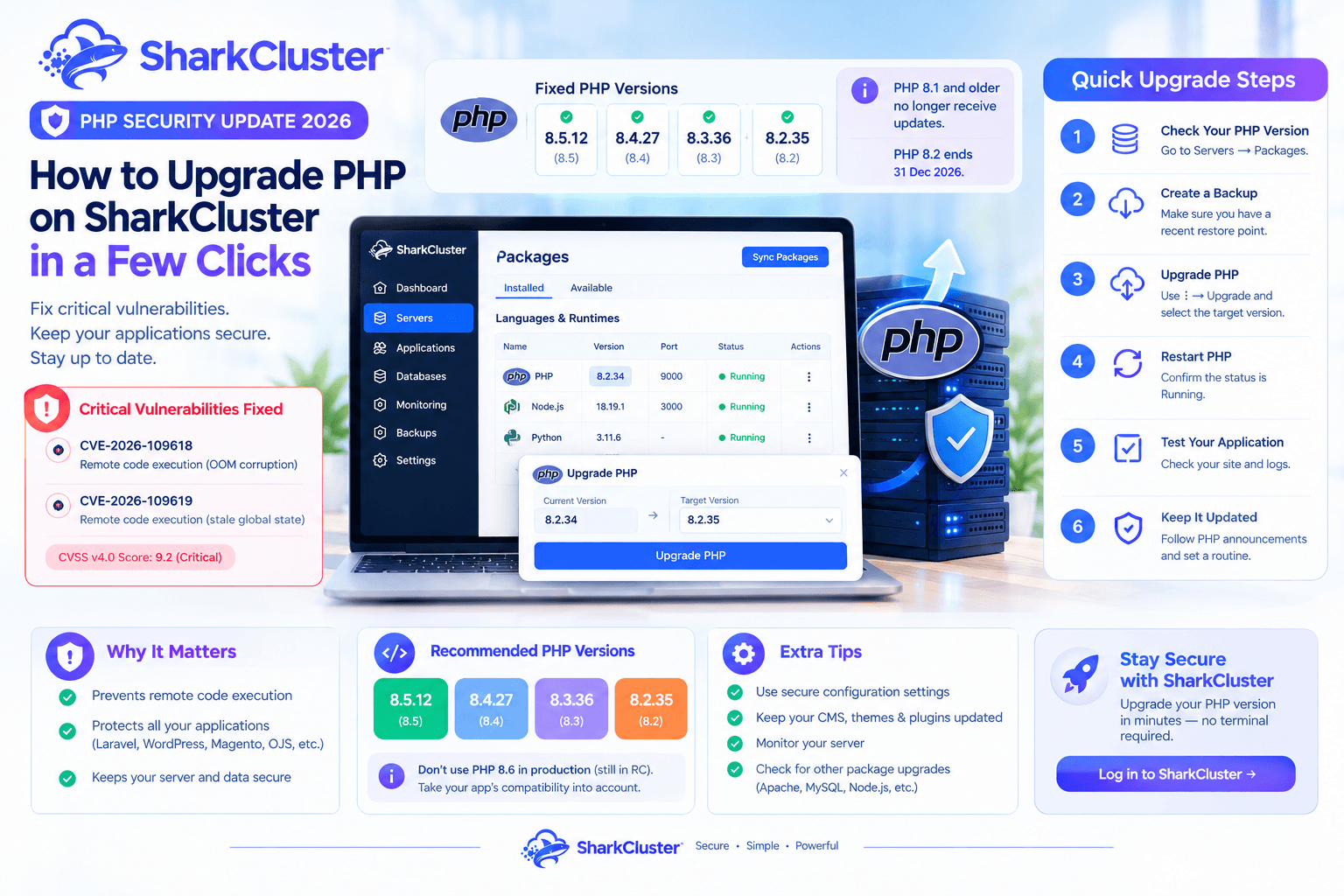

On 21 October 2026, the PHP project released an emergency security update. It fixes two critical vulnerabilities that can allow unauthenticated remote code execution, meaning an attacker could run code on a server without logging in:
- CVE-2026-109618: remote code execution caused by out-of-memory corruption
- CVE-2026-109619: remote code execution caused by stale global state
The PHP security team rated both 9.2 on the CVSS v4.0 scale. They affect PHP itself, not just badly written applications, so Laravel, WordPress, Magento, OJS and custom PHP sites are all potentially exposed.
If your application runs on a SharkCluster server, you can check and upgrade PHP directly from your dashboard.
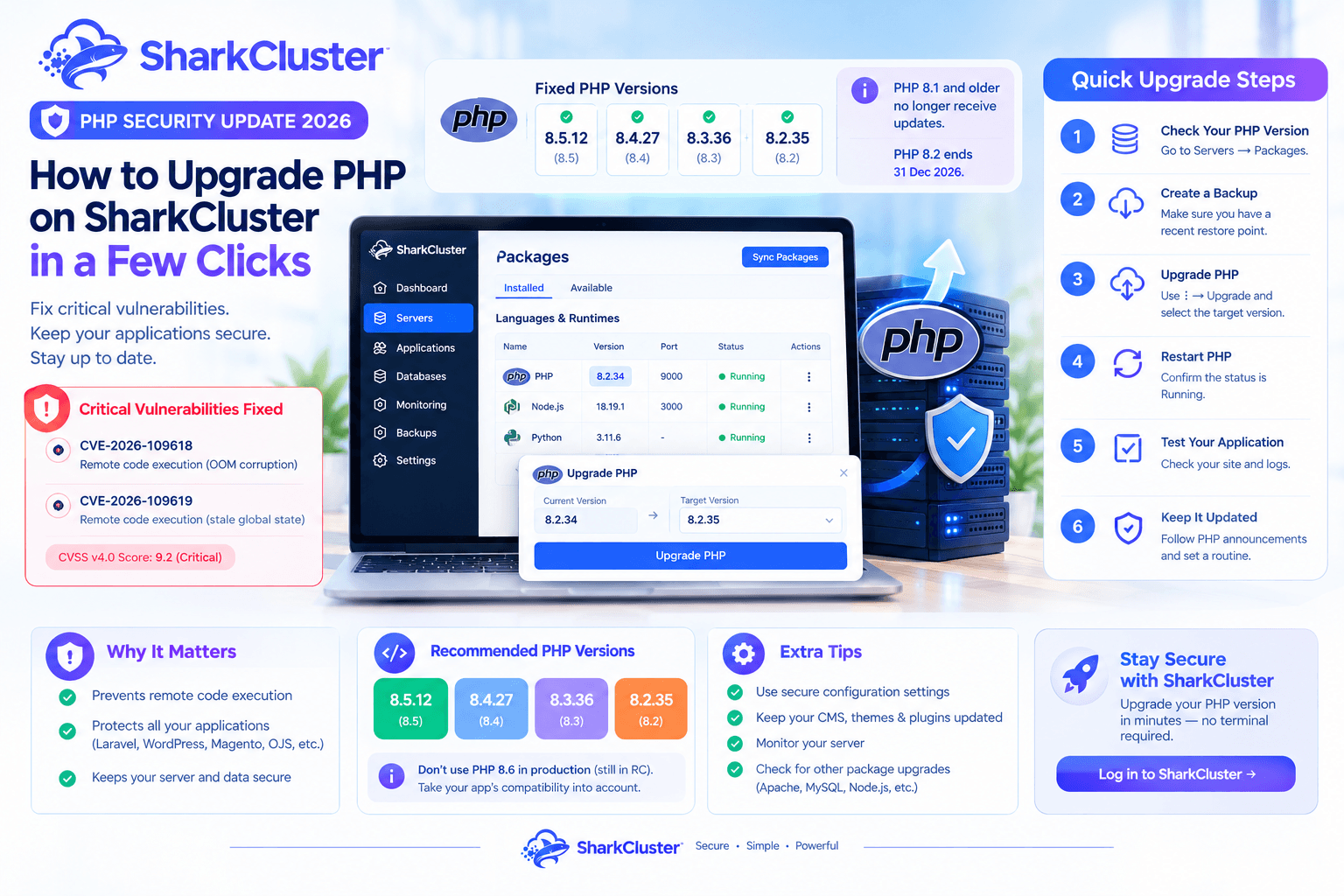
Which PHP version should you be on?
The PHP project fixed both flaws in these releases:
| PHP branch | Fixed version |
|---|---|
| PHP 8.5 | 8.5.12 |
| PHP 8.4 | 8.4.27 |
| PHP 8.3 | 8.3.36 |
| PHP 8.2 | 8.2.35 |
Two important notes from PHP.net:
- PHP 8.1 and older no longer receive updates from the PHP project. Upgrade to a supported branch.
- PHP 8.2 reaches end of life on 31 December 2026. After that date it receives no more security fixes, so start planning your move to 8.3, 8.4 or 8.5.
PHP also states that there are no complete mitigations. Updating is the only safe choice.
How to check your PHP version on SharkCluster
- Log in to your SharkCluster dashboard and open Servers.
- Click the server that hosts your application.
- In the server menu, open Packages.
- On the Installed tab, find PHP under Languages & Runtimes.
The Version column shows the PHP version your server is running (for example, 8.5.12), along with its port and status. If the version is lower than the fixed release for your branch, you need to update.
How to upgrade PHP on SharkCluster
- Create a backup first. Open Backups in the server menu and make sure you have a recent restore point. Automated weekly backups are helpful, but before a critical change you want one taken right now.
- Go to Servers → your server → Packages.
- Find PHP in the Installed list and click the three-dot (⋮) Actions menu at the end of the row.
- Click Upgrade. The menu also offers Details & Config, Restart, Stop and Uninstall.
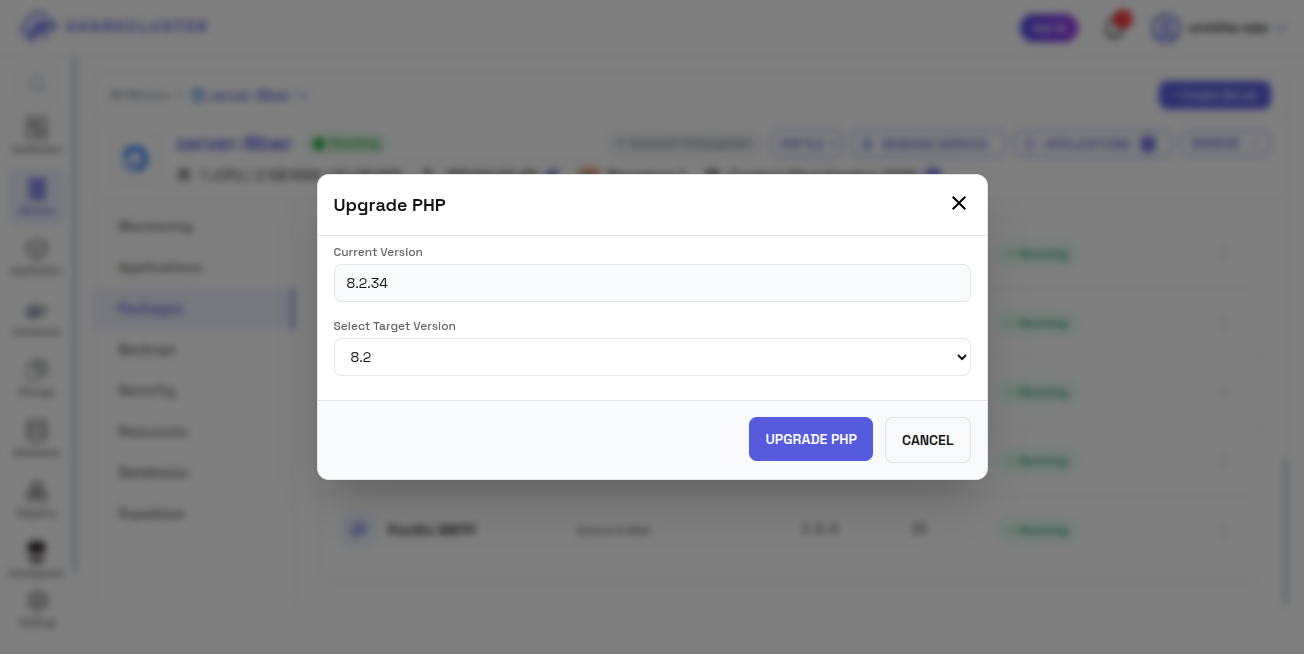
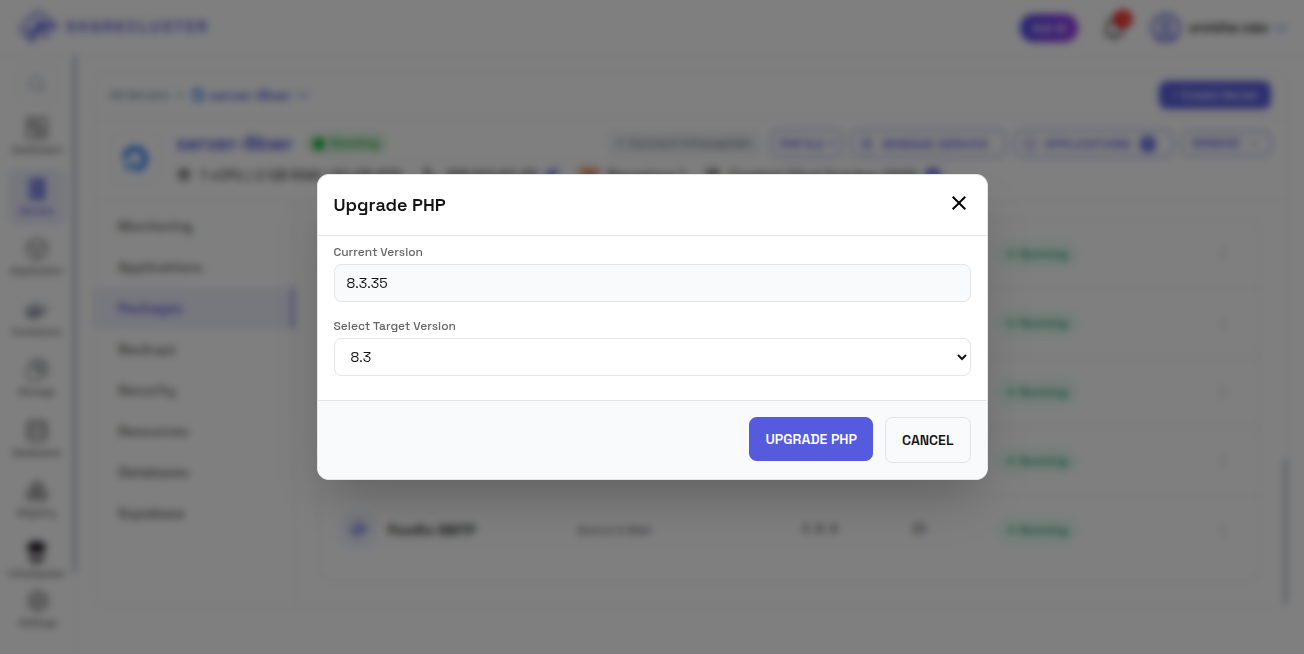
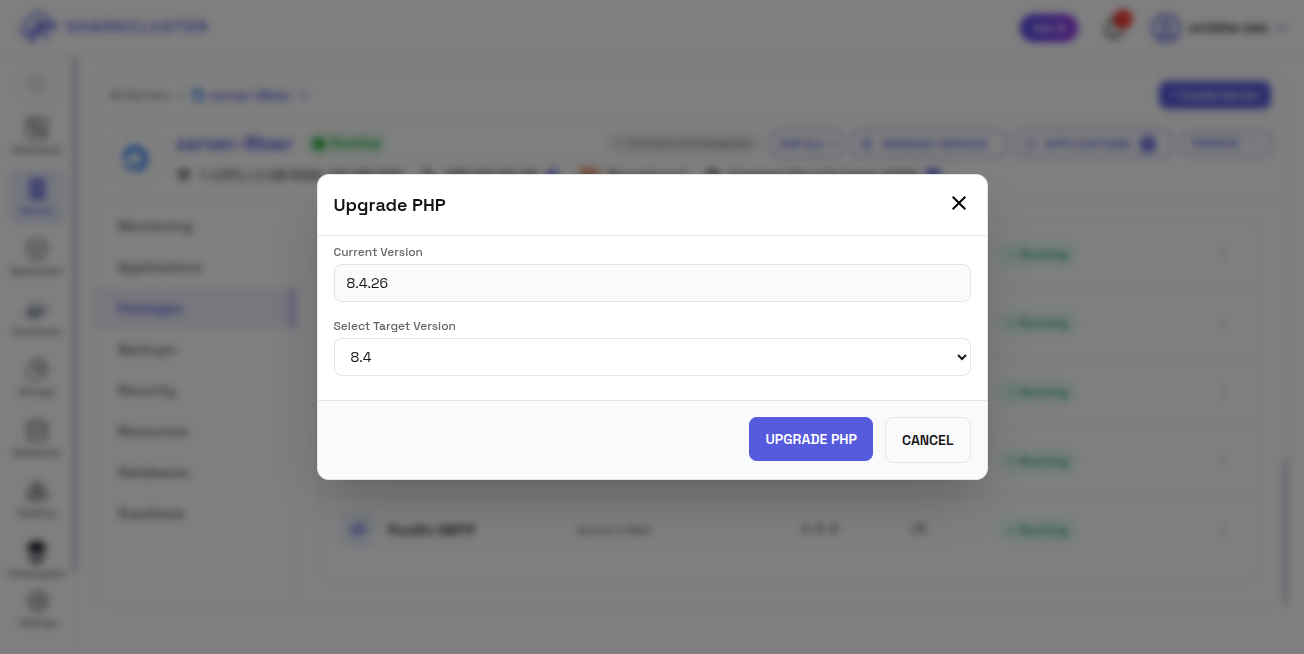
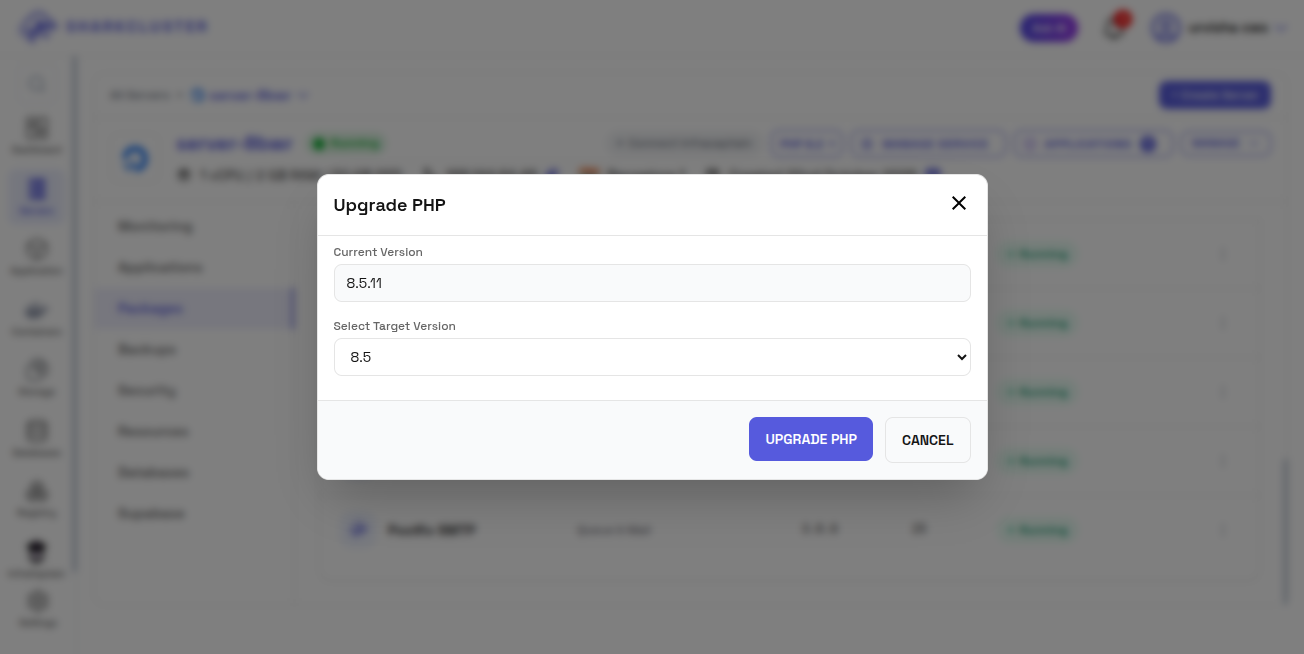
- In the Upgrade PHP window, you will see your Current Version. Use Select Target Version to choose the version you want.
- Click Upgrade PHP to start the upgrade.
- Check the result. When it finishes, return to the Packages list and confirm the new version and that the status shows Running. Use Restart from the same Actions menu if you want to be sure PHP is running fresh.
- Test your application. Load your site, log in, submit a form, and check your error logs.
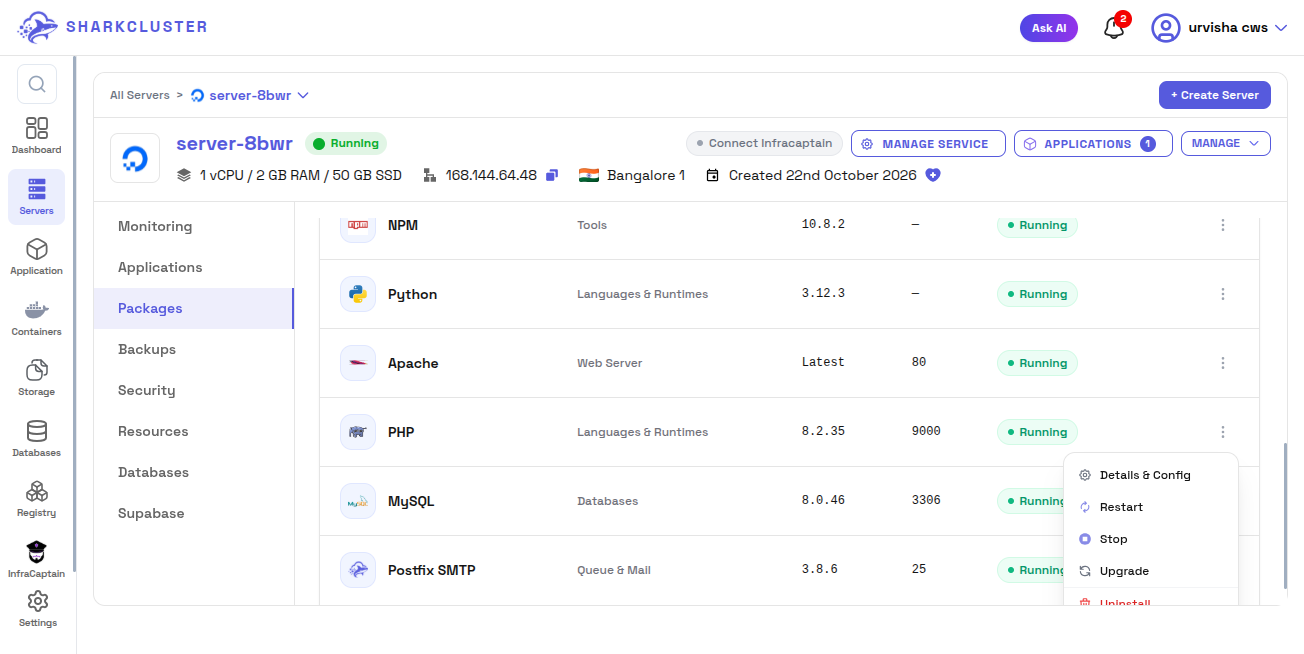
Tip: if the Packages list looks out of date, use the Sync Packages button at the top of the page to refresh it.
Choose the target version carefully
- Pick a stable, supported release (8.5, 8.4 or 8.3 right now). Check with your application’s documentation first, because not every CMS or framework version supports the newest PHP.
- Don’t use PHP 8.6 on a production server yet. PHP 8.6 is still in release-candidate testing, and the PHP team says plainly that these builds must not be used in production. Try it on a staging server instead.
- Jumping several versions at once (for example, 7.4 straight to 8.5) can break old code and plugins. Test on a staging server first, and upgrade your application or CMS before PHP if the vendor requires it.
If you can’t upgrade right now
Only the upgrade fully fixes the vulnerabilities, but PHP lists settings that reduce exposure to specific attack paths in the meantime. Review your configuration using Details & Config in the PHP Actions menu:
- Set
session.upload_progress.enabled = 0and restart PHP. This applies inphp.inior the pool configuration, not viaini_set()or.user.ini. - On PHP 8.5, set
fatal_error_backtraces = 0and restart. - Set a low
post_max_size(8Mfor apps that don’t accept uploads,32Mfor those that do), and keepupload_max_filesizebelow it. - Set limits on request size, header count and field count at the web server level as well.
- Fix any attacker-reachable fatal errors and timeouts in your own code, especially in upload and import handling.
These steps are a temporary stopgap. They do not make a server safe.
Don’t forget the rest of your stack
Your server’s Packages page lists more than PHP. A typical SharkCluster server shows the web server (Apache2), database (MySQL), mail service (Postfix) and tools such as Node.js, Python and Git. While you are on the page, check whether other packages have upgrades available. PHP’s own manual advises updating often and staying aware of the latest versions and their changes.
Make updates a habit
PHP shipped security releases throughout 2026, so this will not be the last. A simple routine helps:
- Check Packages monthly, and immediately after any critical PHP announcement.
- Follow PHP.net announcements so you learn about advisories the day they appear.
- Take a backup before every upgrade.
- Test on a staging server before changing production.
- Keep your CMS, themes, plugins and Composer dependencies updated as well.
Application habits that also protect you
Patching the engine is half the job. These practices help even when something else fails:
- Turn off error display in production (
display_errors = Off) and log errors privately. - Use prepared statements for all database queries.
- Hash passwords with
password_hash(). - Use secure session cookie settings (
httponly,secure,samesite). - Keep uploaded files out of executable directories.
- Don’t expose database ports publicly.
Quick checklist
- Check your PHP version under Servers → Packages
- Take a fresh backup
- Upgrade to 8.5.12, 8.4.27, 8.3.36 or 8.2.35 (or a newer supported release) using ⋮ → Upgrade
- Restart PHP and confirm the status is Running
- Test your site and check logs
- Plan a move off PHP 8.1 or older, and off 8.2 before 31 December 2026
Need help with an upgrade? Contact the SharkCluster support team and we’ll help you do it safely.
Source: PHP.net News Archive 2026 (https://www.php.net/archive/2026.php) and the PHP Manual, Security → Keeping Current.
Run this on your own VPS
Deploy servers and applications on infrastructure you own, managed from one panel — backups, caching, firewall and monitoring included.