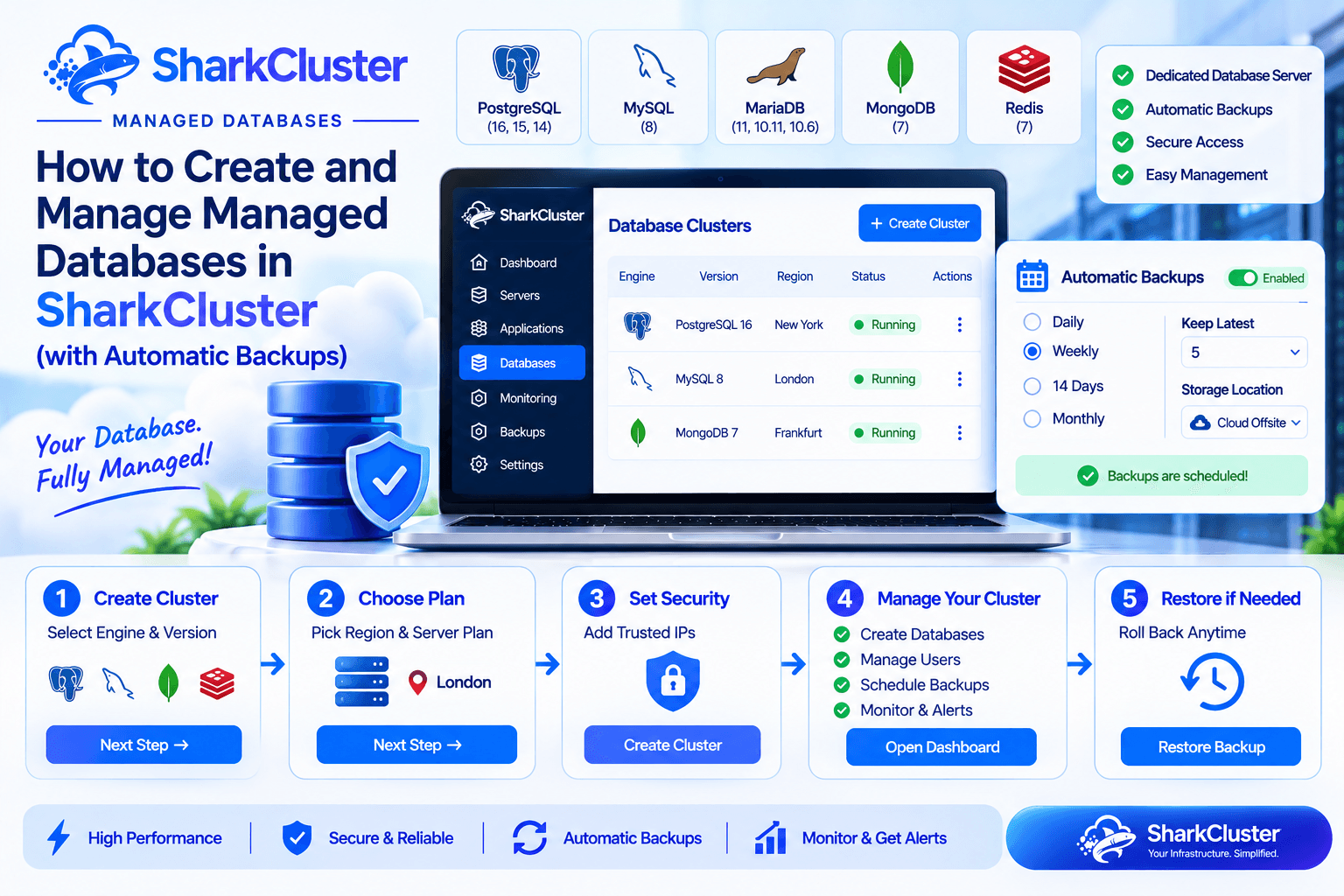

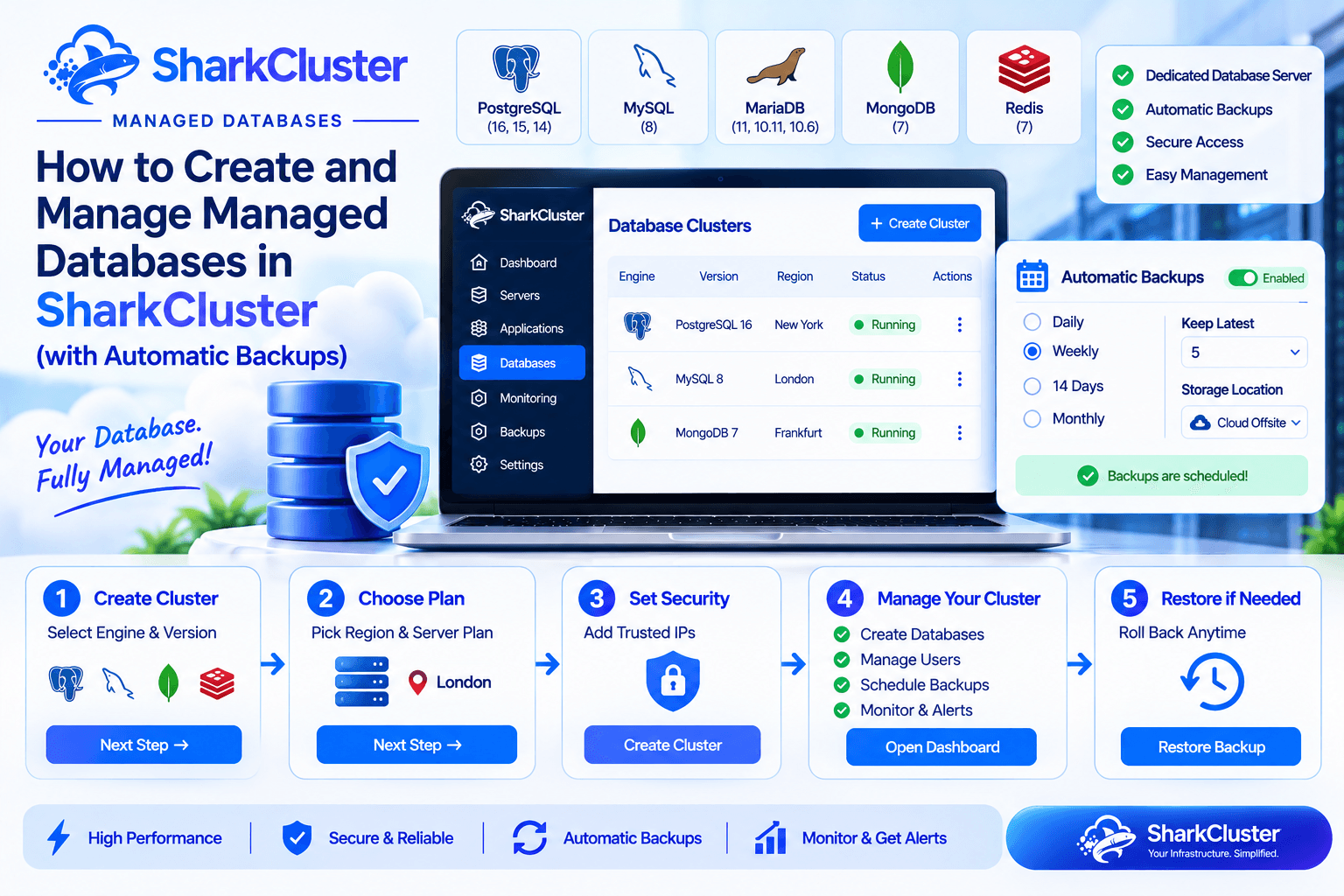
Running your database on the same server as your application is fine at first. As you grow, it becomes a problem: the app and the database fight over memory, a busy deploy slows down queries, and backups compete with live traffic.
SharkCluster's Managed Databases give the database its own server. You choose the engine and the plan, and SharkCluster provisions the server, installs and configures the engine, and hands you the connection details. Users, databases, configuration and scheduled backups are all managed from the dashboard.
Supported engines
| Engine | Versions | Good for |
|---|---|---|
| PostgreSQL | 16, 15, 14 | Relational data with strong consistency, complex queries, JSON |
| MySQL | 8 | Classic web applications, WordPress, Magento, Laravel |
| MariaDB | 11, 10.11, 10.6 | MySQL-compatible workloads |
| MongoDB | 7 | Document data and flexible schemas |
| Redis | 7 | Caching, sessions, queues |
The version you pick is pinned. Patches and minor updates are handled for you, but a major version upgrade is never applied automatically.
How it works
Each cluster runs on its own VPS at the infrastructure provider and region you choose. The monthly price shown during setup is the price of that VPS, so there is no separate database fee to work out.
Because a cluster is a single server, it is not a high-availability setup: there is no automatic failover and no read replicas. That makes backups and trusted sources (covered below) especially important.
Creating a database cluster
Open Databases in the main sidebar and click to create a new cluster. Setup has three steps.
1. Select database engine & environment
Pick the engine and the version you want.
2. Region & server plan
Choose the provider, the datacenter region and the VPS plan. Pick the region closest to the servers that run your application, since every query travels between the two. You can see CPU, memory, storage and price for each plan before you choose.
3. Cluster identity & network security
Give the cluster a name (for example production-postgres-db) and add your Allowed Firewall IP Addresses. Enter the public IP of each application server that needs to connect, either a single address such as 203.0.113.7 or a range such as 203.0.113.0/24.
Don't leave this list empty for production. With no IPs listed, the database port accepts connections from any address and is protected only by its password.
Review the summary, accept the terms and create the cluster. Provisioning usually takes a few minutes, depending on the provider and region.
Managing your cluster
Open a cluster to see these tabs:
| Tab | What you do there |
|---|---|
| Overview | Status, engine, version, region and resource usage at a glance. |
| Connection | Host, port, default database, username, password and a ready-made connection string. |
| Databases | Create and delete databases inside the cluster, export a database, and grant users access to it. |
| Users | Add users, reset passwords and remove users you no longer need. |
| Logs & Queries | The engine log and running queries, for troubleshooting slow or stuck requests. |
| Configuration | Tune engine settings, or apply a saved parameter group to keep several clusters consistent. |
| Backups | Manual and scheduled backups, storage location and restores. |
| Access | Edit the trusted source IPs after the cluster is created. |
| Settings | Power actions, deletion protection and deleting the cluster. |
For MySQL and MariaDB clusters you can also turn on phpMyAdmin to browse tables and run queries from the browser.
Connecting your application
Copy the connection string from the Connection tab into your application's environment settings. A PostgreSQL connection string looks like this:
DATABASE_URL=postgresql://dbadmin:[email protected]:5432/defaultdbFor a Laravel app on MySQL, the same details go into separate variables:
DB_CONNECTION=mysql
DB_HOST=203.0.113.50
DB_PORT=3306
DB_DATABASE=defaultdb
DB_USERNAME=dbadmin
DB_PASSWORD=YOUR_PASSWORD
If the connection times out, the most common cause is that your application server's IP is missing from the trusted sources list. Add it under Access.
Tip: create a separate user for each application rather than sharing the admin user. If one application is compromised, you can reset or remove just its user.
Automatic backups
Open the Backups tab and go to Schedule & Storage.
Schedule
| Option | Runs |
|---|---|
| None | No automatic backups |
| Daily | Every 24 hours |
| Weekly | Every 7 days |
| 14 Days | Every 14 days |
| Monthly | Every 30 days |
Set Keep Latest Backups to the number of backups you want to keep (5 by default, up to 50). When a new scheduled backup completes, the oldest ones beyond that number are removed. Scheduled backups are taken at 15 minutes past the hour, and the dashboard shows when the next one will run.
Storage location
- Local Host Storage: backups are kept on the cluster's own server. Restores are fast, but if that server is lost, so are the backups.
- Cloud Offsite Storage: backups are also copied to encrypted cloud object storage, so they survive a server or host failure. Use this for anything you can't afford to lose.
Manual backups
You can take a backup at any time, of the whole cluster or of a single database. Take one before a risky migration or a large data import.
Restoring a backup
Pick a backup from the list and choose Restore. You have two options:
- Restore into a new database. Your current database is left untouched and the backup is restored as a separate copy under a name you choose. Use this to recover a few deleted rows or to compare old and new data.
- Overwrite the existing database. The current data is replaced with the backup. SharkCluster takes a safety backup automatically before it starts, so you can go back if you picked the wrong one.
Protecting production clusters
In Settings, turn on Deletion protection for every production cluster. While it's on, the cluster can't be deleted until someone deliberately turns protection off first.
Checklist for a production database
- Trusted source IPs set to your application servers only
- A separate database user for each application
- Daily backups with Cloud Offsite Storage turned on
- A test restore into a new database, so you know restores work
- Deletion protection turned on
Pair your cluster with server health alerts on your application servers, so you hear about problems on both sides early.
Run this on your own VPS
Deploy servers and applications on infrastructure you own, managed from one panel — backups, caching, firewall and monitoring included.