
Every developer has a story about an update that worked perfectly on their laptop and broke the live site. A PHP upgrade, a plugin update, a database migration: the safest way to try any of them is on an exact copy of production.
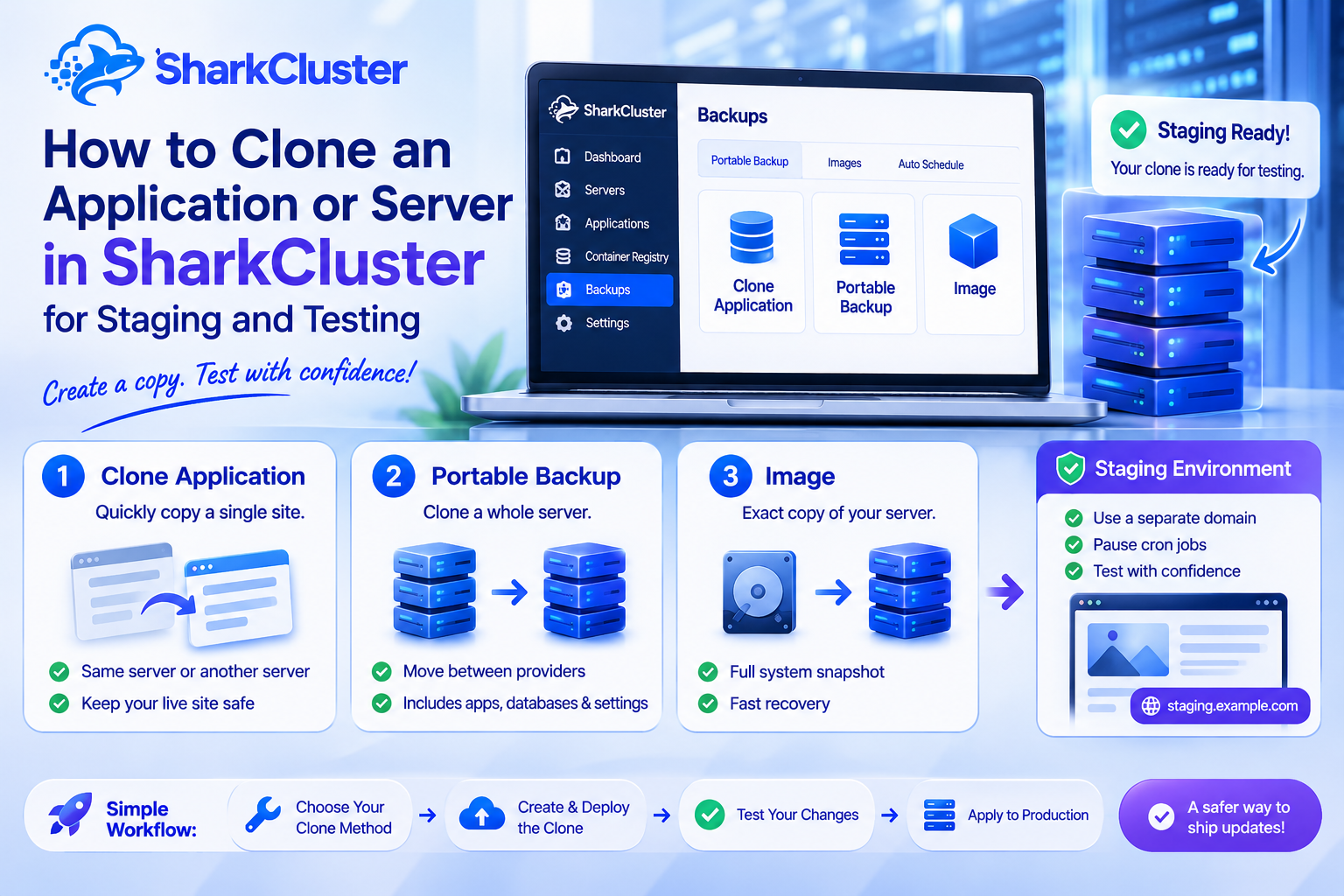
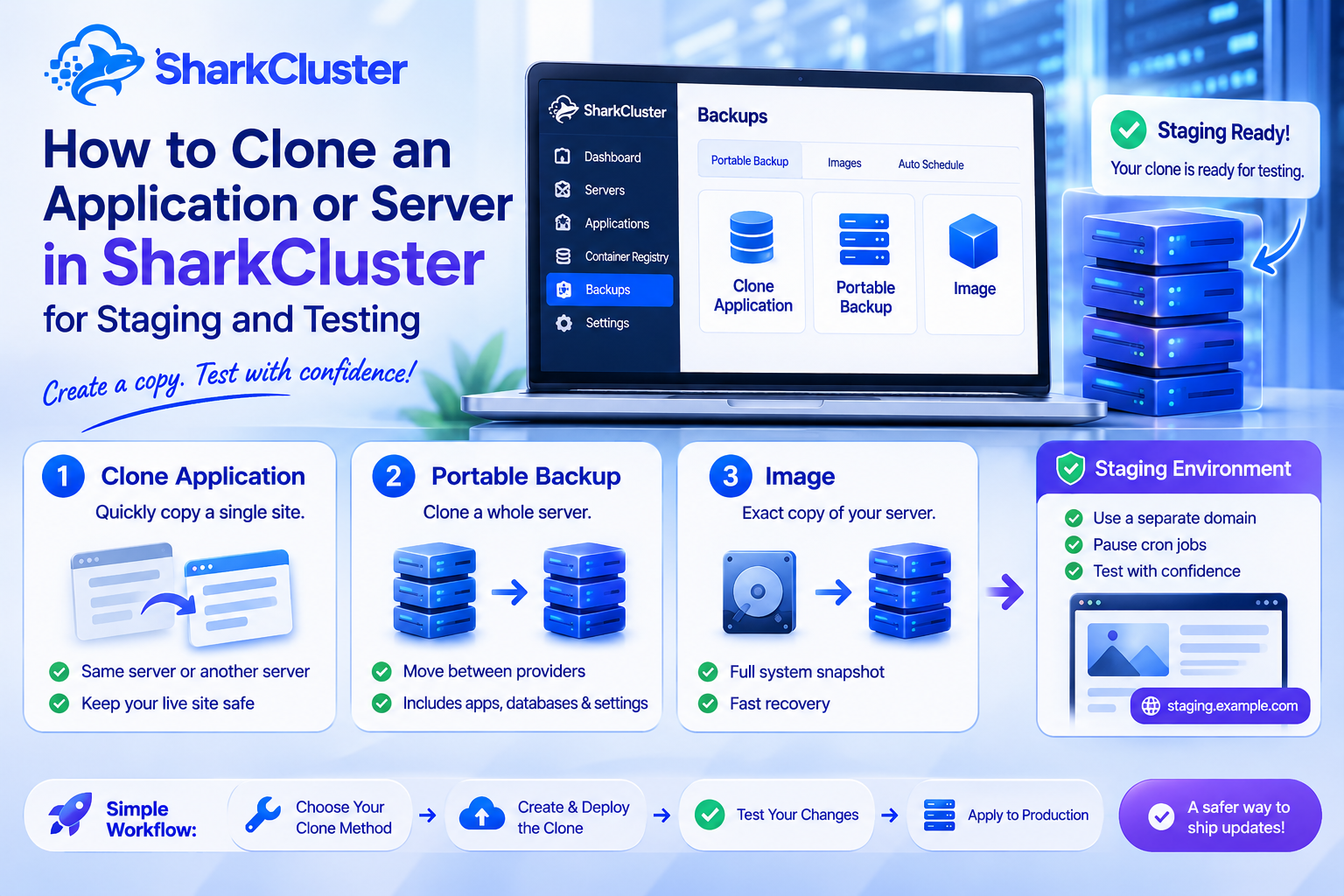
SharkCluster gives you three ways to make that copy, depending on how much you need to clone and where it should go. This guide explains each one, when to use it, and how to turn a clone into a proper staging environment.
Three ways to clone
| Method | What it copies | Where it can go | Best for |
|---|---|---|---|
| Clone Application | One application | The same server or another server you own | Quick staging copy of a single site |
| Portable Backup | All applications' files, a dump of each database, and server settings | A brand-new server on any supported provider | Full staging servers and moving between providers |
| Image | The server's whole disk | A new server from the image, or rebuilding the same server | Exact server copies and fast full recovery |
Option 1: Clone Application
This is the fastest way to get a staging copy of a single site.
- Go to your server's Applications list.
- Open the menu on the application you want to copy and choose Clone Application.
- Under Server Selection, choose where the copy should go: the same server, or another of your servers.
- Enter a New Application Name, such as
shop-staging, and confirm.
SharkCluster creates a duplicate of the application, including its files and database, as a separate app with its own credentials. Your live application is not touched.
Cloning to a different server is the better choice when you're testing something heavy, like a large import or a performance change, because the staging copy can't slow down production.
Option 2: Portable Backup (clone a whole server)
A Portable Backup bundles every application on a server (its files), a dump of each database and the server's SharkCluster settings into one archive. You can then create a brand-new server from it, and SharkCluster restores the applications, databases and settings automatically.
Because the new server starts from a clean base and the applications are installed on top, the new server doesn't have to be at the same provider. You can take a Portable Backup of a DigitalOcean server and restore it onto Contabo, for example.
Create a Portable Backup
- Open your server and go to Backups.
- Open the Portable Backup tab. If Portable Backup isn't enabled for this server yet, enable it first; it is an add-on billed with the server.
- Create a new portable backup.
- Wait while SharkCluster bundles your applications and databases. This usually takes 15–30 minutes depending on the amount of data. You can leave the page; progress is tracked in the background.
Create a server from it
- From the server menu, choose Clone Server.
- Select the portable backup you want to use.
- Choose the provider, region and plan for the new server. The estimated cost is shown before you confirm.
- Confirm. SharkCluster provisions the new server and restores everything onto it.
Remember that the new server is a real, billable server from the moment it is created. Delete it when you have finished testing if you don't need it any more.
Option 3: Images
An Image is a copy of the server's entire disk. Images are incremental: the disk is split into blocks, and only blocks that have changed since earlier images are uploaded, so later images are quicker and use less storage.
From the Image tab under Backups you can:
- Create Image to take an image now;
- Create New Server from Image to spin up an exact copy of the server;
- Rebuild Server from Image to roll the existing server back to the state in the image.
Choose an image when you want the server exactly as it is, including system-level changes made outside SharkCluster. Choose a Portable Backup when you want to move providers or start from a clean base.
Scheduling automatic clones
Both Portable Backups and Images can run on a schedule. Open the Auto Portable Backup Schedule or the Auto-Image Schedule and choose a frequency:
| Frequency | Runs |
|---|---|
| None | No automatic copies |
| Daily | Every 24 hours |
| Weekly | Every 7 days, on the day you choose |
| 14 Days | Every 14 days |
| Monthly | Every 30 days |
Pick a time of day as well. Scheduled runs use the timezone in your profile, so choose a quiet hour for your visitors. SharkCluster keeps the latest 5 automatic copies per server and removes older ones.
A weekly scheduled Portable Backup means you always have a recent, ready-to-restore copy of the whole server, which also works as a disaster-recovery plan.
Turning a clone into a safe staging environment
A clone is an exact copy of production, and that includes things you don't want running twice. Before you start testing, go through this list:
- Give it its own domain. Point a subdomain such as
staging.example.comat the clone so nobody confuses it with the live site. - Pause cron jobs. Scheduled jobs that send emails, charge cards or sync data with other systems should be turned off or pointed at test services.
- Stop outgoing email. Switch the mail settings to a test inbox so customers don't receive duplicate order or newsletter emails.
- Use test API keys. Swap payment gateways and other third-party services to sandbox mode.
- Keep it private. Add password protection or block search engines so the staging copy isn't indexed.
A simple staging workflow
- Clone the application (or take a fresh Portable Backup) right before you start, so staging matches today's production.
- Apply the update on staging: a package upgrade, a new plugin, a code release or a migration.
- Test the critical paths: login, checkout, forms, admin pages and scheduled jobs.
- Take a backup of production, then apply the same change there.
- Delete the staging copy, or keep it for the next round.
If you haven't tested it on a copy, you're testing it on your customers.
Wrapping up
Use Clone Application for quick single-site staging, Portable Backup to copy a whole server or move providers, and Images for exact disk-level copies. Put one of them on a schedule, and you'll always have a fresh copy ready when you need it. Next, see how SharkCluster alerts you about pending security updates, which are a great thing to test on a clone first.
Run this on your own VPS
Deploy servers and applications on infrastructure you own, managed from one panel — backups, caching, firewall and monitoring included.