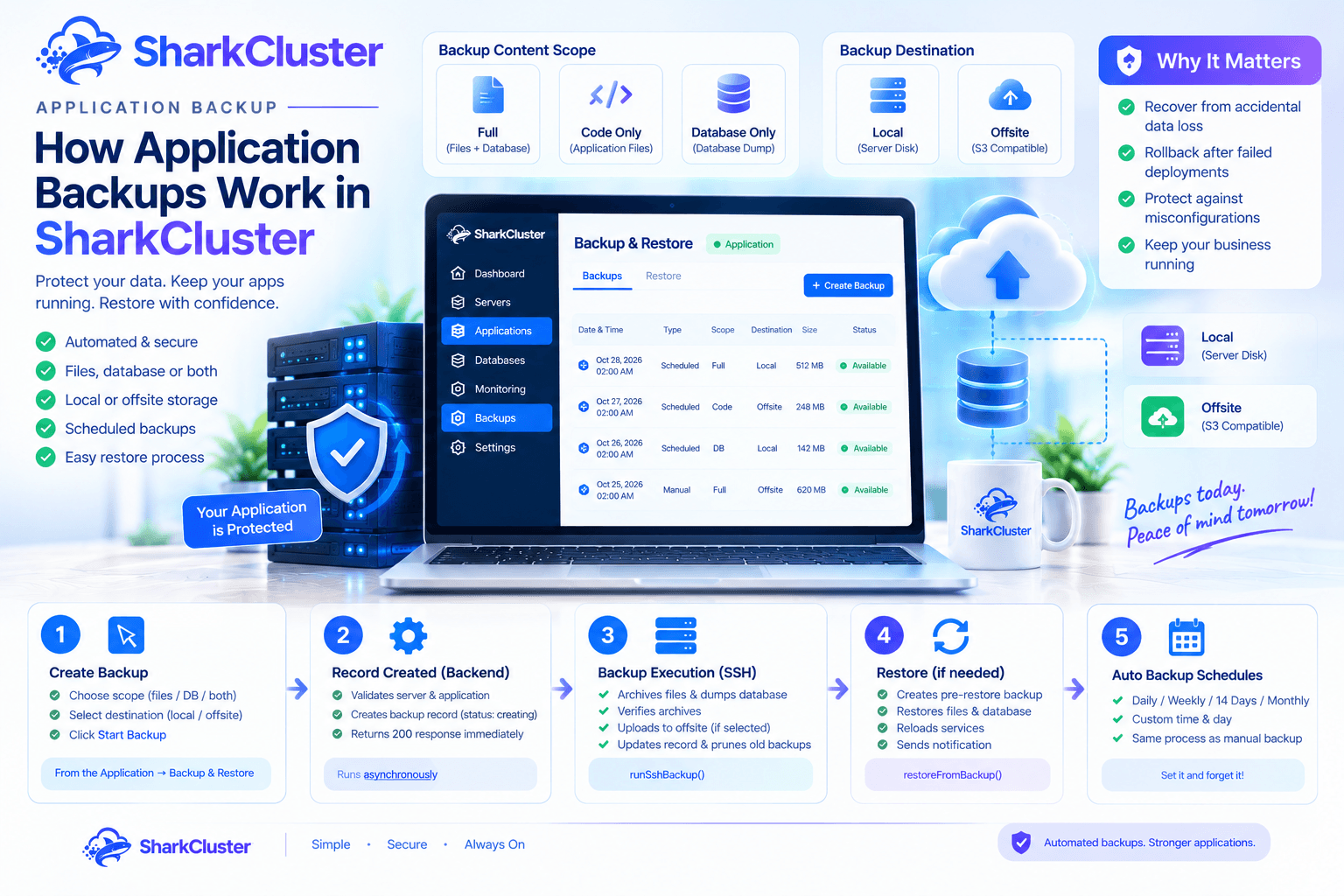

What is an Application Backup in SharkCluster?
An application backup in SharkCluster is a point-in-time snapshot of your hosted application. Depending on the scope you choose, it can capture your application files (the entire document root), your database, or both — compressed and stored securely. These snapshots let you roll back to any previous working state in case of a failed deployment, accidental data deletion, misconfiguration, or server-level disaster.
Every backup in SharkCluster is created over a live SSH connection directly to your server. There is no agent to install, no downtime required, and the process is entirely automated. The panel gives you full control over what to back up, where to store it, and how often.
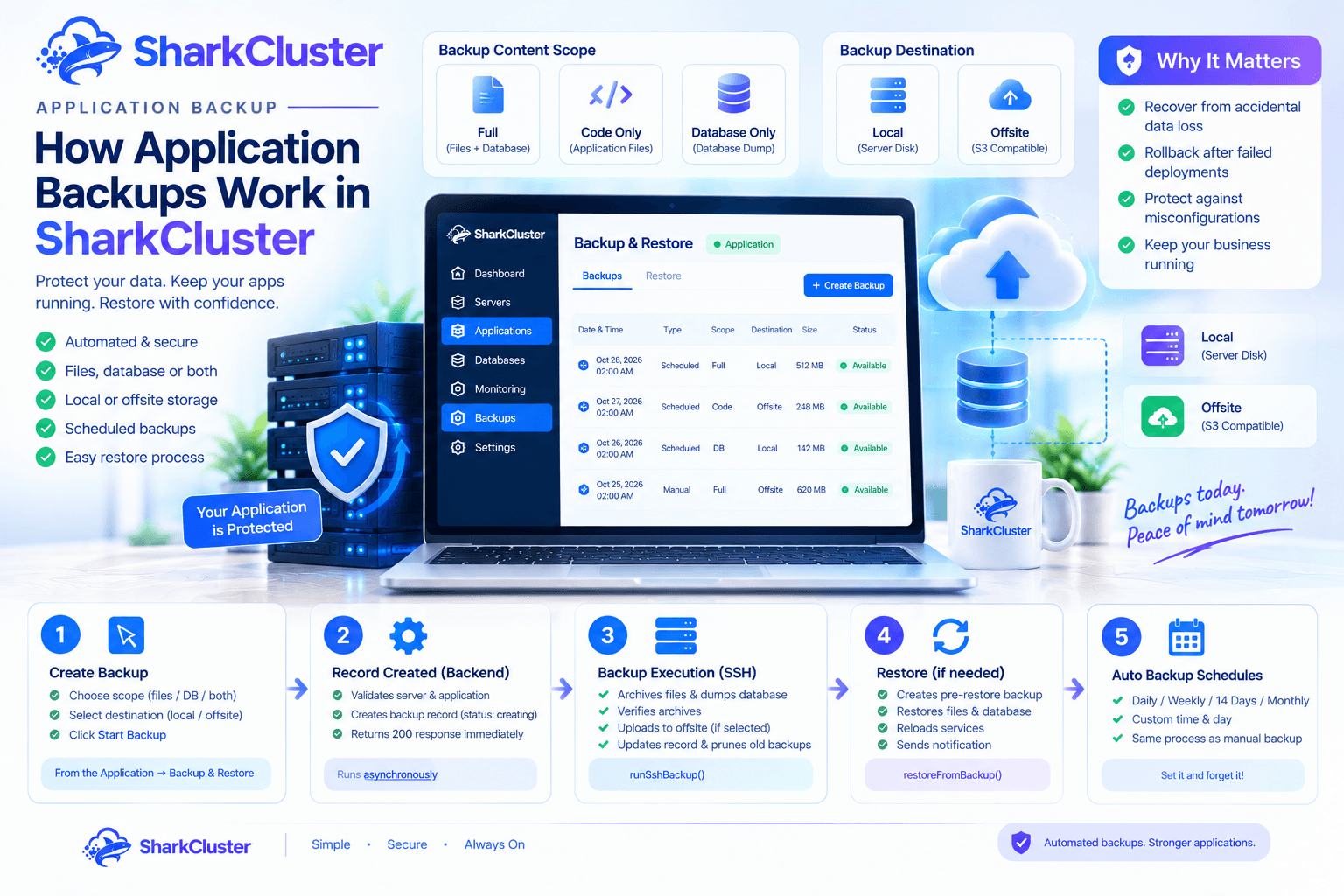
The Complete Backup & Restore Flow
The backup and restore system is split between the Restore.jsx panel (frontend) and applicationBackup.js (backend). Here is the full flow from click to completed snapshot.
Step 1 — Initiation from the Panel
- Navigate to Application → Backup & Restore.
- Click 'Create Backup' to open the backup configuration modal.
- Choose a Backup Destination: Local (stored on the server disk) or Offsite (uploaded to S3-compatible object storage).
- Choose a Backup Content Scope: Full (files + database), Code Only (application files), or Database Only (database dump).
- Click 'Start Backup'. The frontend dispatches a process to the Global Process Manager (addProcess) and calls the triggerSshBackup API.
Step 2 — Record Creation (Backend, Non-Blocking)
- The backend validates the server and application records in the database.
- A new ApplicationBackupData row is immediately created with status: 'creating', the chosen backup_scope, and the chosen destination.
- The API instantly returns a 200 response to the UI — the actual SSH backup runs fully asynchronously in the background.
- The frontend starts polling every 5 seconds (pollingInterval: 5000) until the backup row transitions from 'creating' to 'available' or 'failed'.
- The favicon activity hook (useFaviconActivity) animates the browser tab during active backups so you can track progress without keeping the tab open.
Step 3 — Execution Over SSH (runSshBackup)
The core backup logic runs inside runSshBackup() which is called after the SSH connection is established:
- Prepare Directory — Creates /tmp/sharkcluster-backups/{applicationId} with chmod 700 for security.
- Archive Application Files — If scope is 'full' or 'code', runs tar --ignore-failed-read -czf against the application's documentRoot, storing paths relative to / so restores always land in the correct location.
- Dump the Database — If scope is 'full' or 'db', builds a database-specific dump command (mysqldump, pg_dump with sudo for postgres user, or mongodump) and compresses the output with gzip.
- Verify Archives — Checks that the expected .tar.gz and .sql.gz files were actually created on disk. If either is missing, the backup is immediately marked as 'failed' rather than silently producing a broken snapshot.
- Measure Size — Runs du -sb on all created archives and converts the total to MB for display in the panel.
- Upload to Offsite (if destination = 'offsite') — Streams the archive files to S3-compatible object storage via the exec channel (not SFTP, for maximum compatibility). Local copies are then removed from the server disk.
- Update Record — Sets status to 'available' and saves the size and storage paths (file_path/db_file_path for Local, s3_key/s3_db_key for Offsite).
- Prune Old Backups — Enforces a maximum of 5 backups per application (all types combined). The oldest records beyond the limit are deleted, along with their files on the server and in object storage.
- Push Notification — Sends an in-panel notification and a queued email to the user confirming success or failure.
Step 4 — Restore Flow (restoreFromBackup)
When you click Restore on an available backup, the backend executes the following steps over SSH:
- Safety Backup First — Before touching anything, SharkCluster creates a full pre-restore backup of the current application state. This is the 'pre_restore' backup type (explained in detail below). Only after this safety snapshot is confirmed does the actual restore proceed.
- Resolve Source — For Local backups, the restore reads file_path and db_file_path directly from the server. For Offsite backups, the archives are downloaded from object storage to a temporary path on the server first.
- Restore Files (if scope includes code) — The entire documentRoot is wiped (rm -rf) and the tar archive is extracted back with tar -xzf -C /. Ownership and permissions are repaired (chown, chmod 775/664).
- Restore Database (if scope includes db) — The existing database is fully cleared (DROP TABLE / DROP SCHEMA / db.dropDatabase()) and the compressed dump is re-imported using mysql, psql, or mongorestore.
- Reload Services — nginx, PHP-FPM (all versions), and PM2 (for Node apps) are reloaded/restarted.
- Cleanup & Notification — Temporary Offsite restore archives are deleted. Success/failure notifications are sent in-panel and via email.
Auto-Backup Schedules
Beyond manual backups, SharkCluster supports automated scheduled backups that run without any user action. You can set:
- Daily — Every 24 hours at the time you configure.
- Weekly — Every 7 days on the specific day and time you choose.
- 14 Days — Every 14 days.
- Monthly — Every 30 days.
- None — Auto-backup disabled (manual only).
Scheduled backups use the same runSshBackup() pipeline as manual backups but with a backup_type of 'daily', 'weekly', '14days', or 'monthly'. All times are interpreted in your local browser timezone, which is shown in the confirmation modal before saving.
The Six Application Backup Labels (backup_type)
Every application backup carries a backup_type label that records how it was created. These six labels are not the same as SharkCluster's seven server-level backup types (auto backups, snapshots, server images, custom path backups, portable backups, full server backups and cloning), which are covered on the Backups feature page. Understanding each label helps you read your backup list clearly and know exactly what each snapshot is for.
| Type | How It's Created | Purpose |
|---|---|---|
| manual | User clicks 'Create Backup' in the panel. | On-demand snapshots before deployments or changes. |
| daily | Auto-scheduler (cron) running on the configured daily schedule. | Routine automated protection. |
| weekly | Auto-scheduler on the configured weekly day and time. | Less frequent automated protection. |
| 14days | Auto-scheduler every 14 days. | Mid-range automated protection. |
| monthly | Auto-scheduler every 30 days. | Lightweight long-term protection. |
| pre_restore | Created automatically by the system before every restore action. | Safety net — a snapshot of the current state before it is overwritten by a restore. |
What Is the 'pre_restore' Backup Type?
The pre_restore type is the most important safety mechanism in SharkCluster's backup system. Every single time you trigger a restore — regardless of which backup you are restoring from — the system automatically creates a full snapshot of the current live application state before making any changes.
This happens inside restoreFromBackup() on the backend. The safety backup is created first (status: 'creating'), and only after it reaches status: 'available' does the actual restore proceed. If the safety backup itself fails, the restore is aborted.
Why Does pre_restore Exist?
Consider this scenario: you restore a 3-day-old backup, only to realize the backup was from before critical configuration changes you made. Without pre_restore, those changes are gone permanently. With pre_restore, you can simply restore back to the pre_restore snapshot and recover the lost state.
The pre_restore backup:
- Is always a full backup (both files and database), regardless of what scope the restore is using.
- Inherits the same destination as the backup being restored — if you are restoring an Offsite backup, the safety snapshot is also uploaded to Offsite.
- Appears in your backup list labeled 'Pre-Restore' in an orange badge so it is immediately identifiable.
- Is subject to the same 5-backup pruning limit as all other types.
- Cannot be turned off — it is a non-negotiable safety step built directly into the restore pipeline.
Local vs Offsite: Key Differences
SharkCluster gives you two places to store your backups. The right choice depends on your risk tolerance, recovery time requirements, and budget.
| Feature | Local Backup | Offsite Backup |
|---|---|---|
| Storage Location | Stored directly on the application server disk at /tmp/sharkcluster-backups/{appId}/ | Uploaded to SharkCluster's S3-compatible object storage. Local archive copies are removed after upload. |
| Server Risk | If the server disk fails, is corrupted, or the VPS is terminated, local backups are lost along with the application. | Completely independent of the server. Even total server loss does not affect your backup. |
| Restore Speed | Fastest — files are already on the server, extraction/import starts immediately. | Slightly slower — archives must be downloaded from object storage to the server before extraction begins. |
| Cost | No extra cost. Uses the existing server disk quota. | Billed per GB based on the offsite pricing rate shown in the Create Backup modal. |
| Pruning Behavior | Old archives deleted via SSH (rm -f) on the server. | Old archives deleted by calling DeleteObjects on the S3 bucket as well as removing the DB record. |
| Network Dependency | No external network required for restore. | Requires stable connectivity between the server and object storage during restore. |
| Best Use Case | Quick rollbacks during development, testing, or staging environments. | Production workloads, disaster recovery, and long-term retention requirements. |
Advantages & Disadvantages
Local Backup
Advantages:
- Fastest restore time — no download step, extraction begins immediately from the local disk.
- No additional storage costs — uses the server's existing disk allocation.
- Simpler architecture — fewer moving parts, no dependency on external object storage availability.
- Great for rapid iteration — ideal for developers who deploy frequently and need fast rollback capability.
Disadvantages:
- Single point of failure — server disk failure, corruption, or accidental deletion removes both your app and its backups simultaneously.
- Consumes server disk space — each full backup stores a .tar.gz and a .sql.gz. With 5 snapshots per app, disk usage can grow significantly on large applications.
- Not suitable for disaster recovery — a provider-side infrastructure failure can make local backups completely inaccessible.
- Tied to server lifetime — if you destroy or rebuild the server, all local backups are permanently lost.
Offsite Backup
Advantages:
- True disaster recovery — backups survive even if your entire server is destroyed, provider has an outage, or the disk is fully corrupted.
- Decoupled storage — backups are independent of the application server, eliminating the single point of failure.
- Best practice for production — aligns with industry-standard backup strategies (3-2-1 rule: 3 copies, 2 different media, 1 off-site).
- No disk pressure on the server — since local copies are removed after upload, offsite backups do not consume your server's disk quota.
Disadvantages:
- Slower restore time — archives must be streamed from object storage to the server before the restore can start. On large applications, this download step adds noticeable time.
- Additional cost — each GB of stored backup data is billed at the offsite rate. For large databases or large file sets, costs can accumulate.
- Network dependency — restore requires a stable, high-throughput connection between the server and the object storage endpoint. A network issue mid-restore can cause the operation to fail.
- Slightly more complex failure modes — if the object storage service itself is degraded, both backup creation and restore will fail, which is rare but possible.
Backup Content Scopes — What Gets Captured
Regardless of destination, you also control what gets included in every backup:
| Scope | What It Captures | Best Used When |
|---|---|---|
| Full | Application files (tar.gz of documentRoot) + Database dump (.sql.gz or .archive.gz) | Complete disaster recovery. The safest option and the default for scheduled backups. |
| Code Only | Only the application file tree (tar.gz). No database. | You changed code/config only and want a fast rollback without touching data. |
| Database Only | Only the database dump (.sql.gz). No files. | You want to roll back a data change (content, users, orders) without overwriting your current codebase. |
Note: When you restore a Full backup, SharkCluster shows a 'What to restore?' selector — letting you narrow the restore to Code Only or Database Only even from a Full snapshot, giving you maximum flexibility.
Backup Pruning — The 5 Backup Limit
SharkCluster enforces a maximum of 5 backup records per application across all types. When a new backup completes and takes the count over 5, the oldest backup(s) are automatically pruned:
- For Local backups: the archive files are deleted from the server via SSH (rm -f) before the database record is removed.
- For Offsite backups: the corresponding S3 objects are deleted via a DeleteObjects call before the database record is removed.
- pre_restore backups count toward this limit just like any other type.
This limit keeps your storage predictable and prevents disk/object-storage bloat. If you need more than 5 snapshots, download important backups externally before they are pruned.
Permissions — Who Can Backup and Restore?
SharkCluster enforces role-based access for backup and restore actions. Server owners always have full access. Team members require explicit permissions:
- Application_Backup permission — required to create manual backups and configure the auto-backup schedule.
- Application_Restore permission — required to trigger a restore from any backup.
- Without the appropriate permission, the Create Backup and Restore buttons are hidden from the panel for that team member.
Final Takeaway
SharkCluster's backup and restore system is designed to be safe by default, not just powerful. The key design decisions that make it reliable are:
- Non-blocking backups — the API responds immediately and SSH work runs asynchronously, so backups never stall your application.
- pre_restore safety snapshots — every restore creates a safety net first, making it impossible to accidentally destroy your current state without a recovery path.
- Flexible scope — Full, Code Only, and Database Only scopes let you be surgical about what you snapshot and what you restore.
- Dual destination — Local for speed, Offsite for resilience. Choose based on your environment and risk profile.
- Automatic pruning — the 5-backup limit keeps storage clean without requiring manual housekeeping.
Whether you are a solo developer running daily backups on a staging server or an enterprise team running offsite backups on a production database — SharkCluster gives you the tooling, visibility, and safety to protect your applications with confidence.
Run this on your own VPS
Deploy servers and applications on infrastructure you own, managed from one panel — backups, caching, firewall and monitoring included.